A client portal for CPA firms, with a separate internal room for your team
Clients get a short, plain view: the documents they still owe, what is waiting for their signature, and a chat on each request. Your team works in an internal room on the same engagement.
Updated 2026-10-17
Most client portals for accountants are a shared folder with a login page. That covers getting files from the client, but it stops at the upload. Somebody at the firm still has to open each file, decide whether it answers the request, tell the client what is wrong, and move the work along in a different tool. And the more the firm does inside the portal, the more careful it has to be about what the client can see.
InflowSheet treats the client portal for CPA firms as one half of the engagement. We describe it as two rooms: a client room and an internal room, on the same engagement, with the same request list joining them.
The client room: what clients see
The client’s view is deliberately small. A client signs in to:
- Home, with their own cards: My Engagements, Documents You Still Owe, and Awaiting Your Signature.
- My Documents, which is the firm’s request list as the client sees it.
- E-Signature, for engagement letters and anything else the firm sends for signing.
- Reports, scoped to their own engagements: what have I sent, what is outstanding, and what needs my signature?
Next actions are written for the client too: “Upload your documents”, “Sign the engagement letter”. Tax Returns appears for a client only if tax scope is granted.
On My Documents, the client uploads straight onto the request item. They can drag and drop up to 30 files at 10 MB each, or take a photo with a phone camera, which matters for the client who would otherwise email a blurry picture of a 1098. Every request row has its own chat thread, so “which account is this for?” gets asked and answered on the row it is about, not in a separate inbox.
Clients come in by invitation from the engagement’s Manage menu, or through “Grant request access”. Client links are unique and tied to the client’s email, and the page tells them “Only your tax firm and you can access this information.”
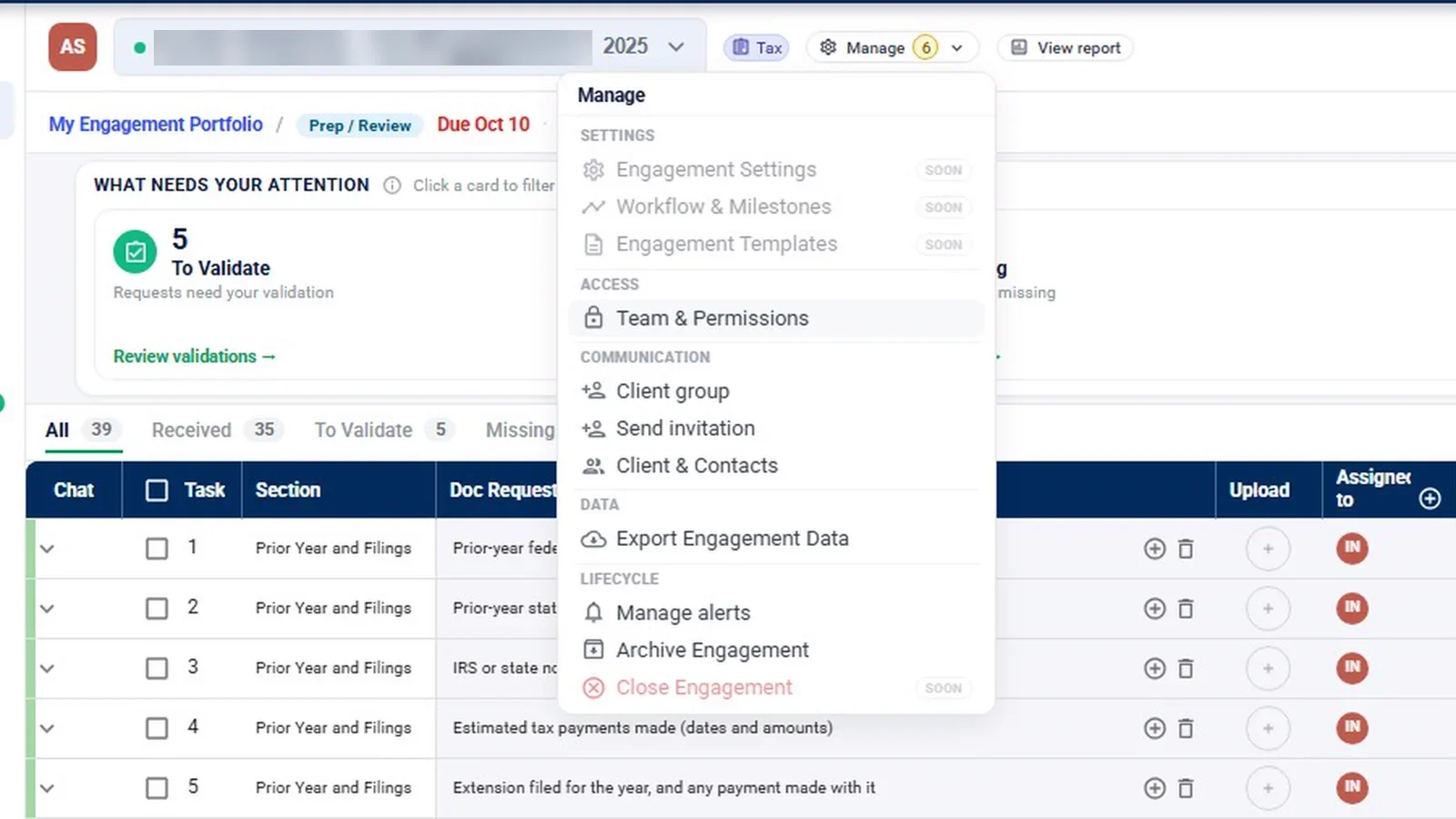
The internal room: what stays with the firm
Behind the client’s list is the firm’s working view of the same engagement. Staff see the request list with its review states (Missing, To validate, Questioned, Validated and N/A), risk ratings, and the attention cards that filter it. Uploads that need a look wait as pending until a firm user reviews them, and a completeness agent’s findings on each document are there for staff to accept or question.
Depending on role and engagement type, the internal rail adds Financials, Evidence, Audit Program, Binder, Tax Returns, K-1s, 1099 Season, Network and Agents. None of these are on the client rail. That is where trial balance mapping, variance commentary, lead schedule sign-offs and the audit program live; see trial balance and audit evidence management for that side.
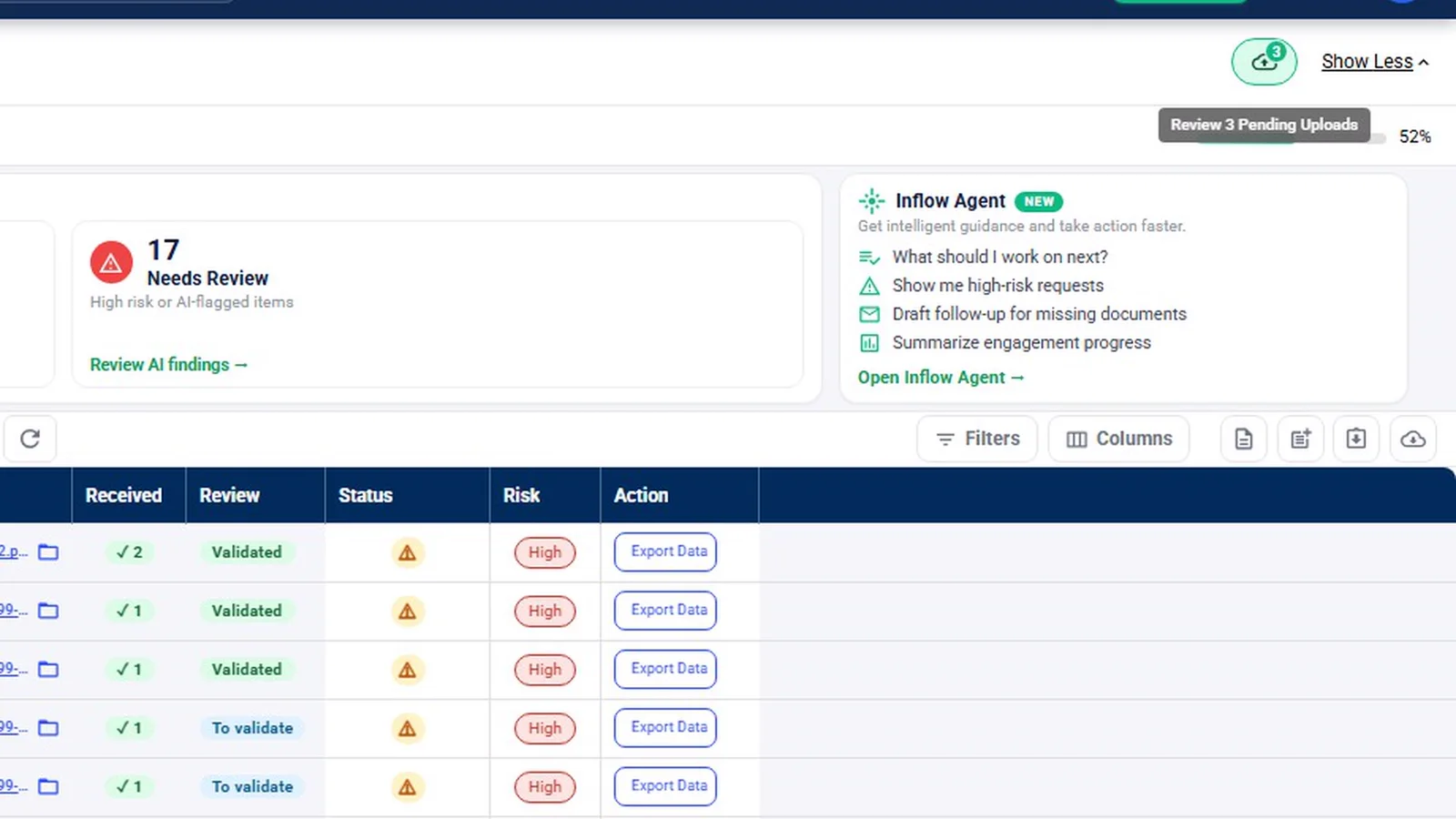
Access inside the firm is set separately. Staff roles are Tax, Audit and Consulting, alongside Admin. An entity access view shows who can reach which clients, and signing authority (who can act as ERO, who signs engagement letters as a Partner Verifier) is marked separately from access.
Signatures from the same place
Clients sign where they upload. Engagement letters go to the partner first in DocuSign, then to the client exactly as reviewed. Tax returns go client first (Form 8879), then the ERO. The external signer confirms their email with a 6-digit code and signs in DocuSign embedded in the page. A firm setting can require DocuSign knowledge-based authentication for client signers on tax returns. Signed documents are filed into the engagement’s SharePoint folders. More on this is on engagement letters and 8879 e-signature.
Storage in your own SharePoint
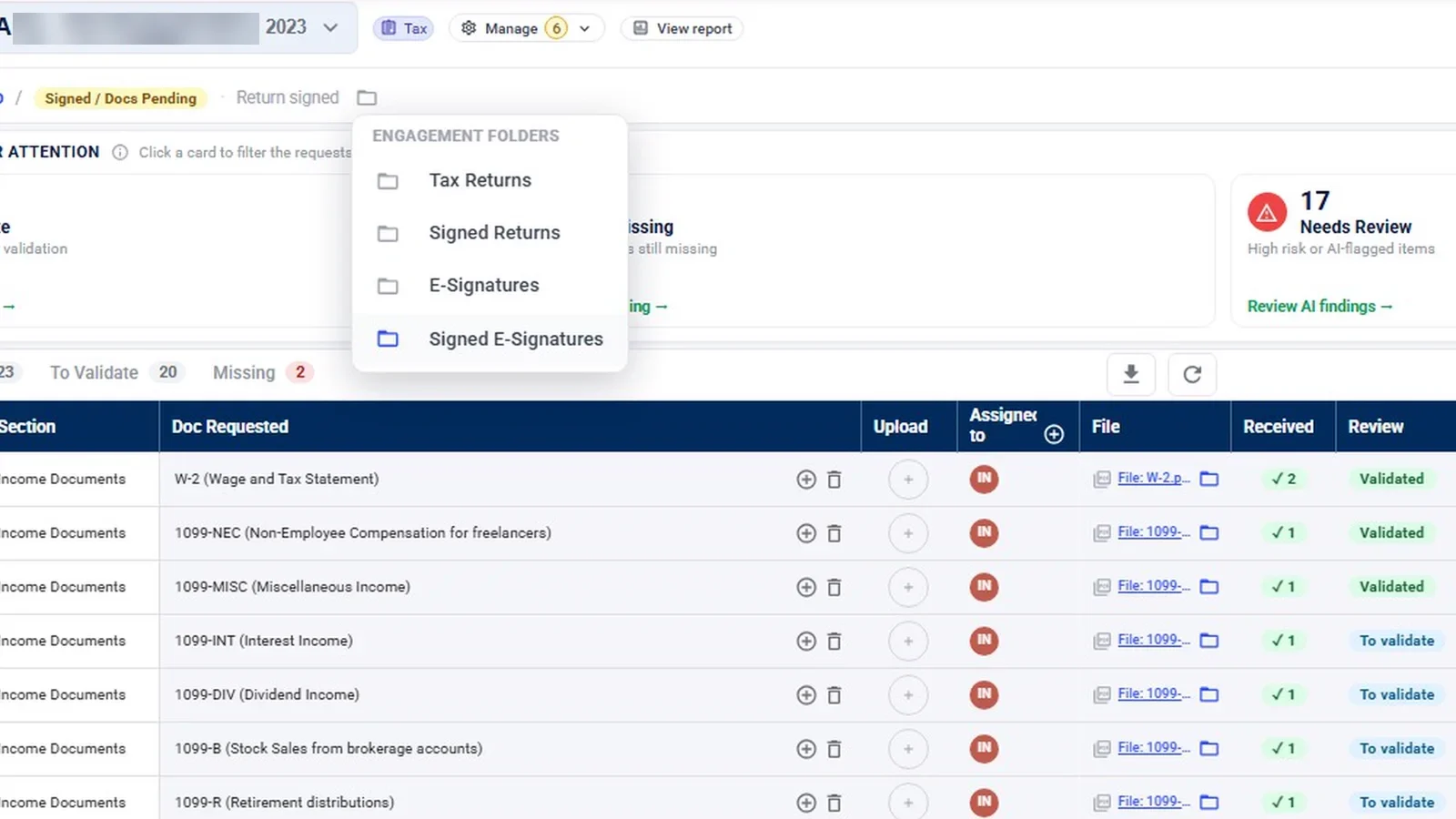
Files are stored in SharePoint. Each engagement has folders for Tax Returns, Signed Returns, E-Signatures and Signed E-Signatures, opened from the folder icon in the crumb bar, and each request has its own folder. Documents can live in the firm’s own SharePoint (see our Security page), and a file dropped into an engagement period’s SharePoint folder appears in InflowSheet on the next refresh.
InflowSheet works with Teams channels the firm creates or links: an engagement is tied to a private Teams team the firm already shares with the client, a private channel, and a period. Staff sign in with Microsoft; the firm can use Entra ID sign-in with its own SSO, MFA and Conditional Access policies, and Microsoft permissions are admin-consented and revocable (see our Security page).
To be precise about where data sits: engagement data is processed and stored in InflowSheet’s own Microsoft Azure environment in the US East region. Documents can be filed in the firm’s SharePoint, but it is not accurate to say everything stays inside your Microsoft 365. The Microsoft 365 page and our SharePoint guide for accounting firms go further.
What the portal does not do
- Clients do not get Teams chat or channel posting from InflowSheet. The conversation is in the chat on each request row.
- There is no Outlook or OneDrive integration.
- There is no client questionnaire-style organizer. Clients answer requests; they don’t fill in an interview.
- It is not billing or invoicing software, and clients don’t pay invoices through it.
- InflowSheet does not hold a SOC 2 report or ISO 27001 certification, and says so on the Security page.
If you are replacing a portal
Most firms switching portals care about two things: that clients find the new one simple, and that staff stop doing the sorting by hand. The first is the client room above. The second is the internal room: a completeness check and a review state on every item, and a drafted follow-up for whatever is missing. Follow-ups are drafted for a person to approve by default. If you are planning a switch, read replacing a CPA client portal.
See the whole engagement
The overview video follows one engagement from the home dashboard through letters, requests, tax, audit, agents and Microsoft 365, so you can see both rooms in context.
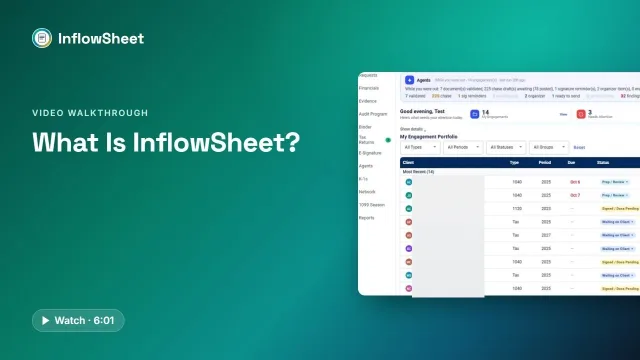 Full walkthrough · 6:02 · access requiredWhat is InflowSheet?The whole platform in six minutes: home dashboard, requests, tax, audit, agents and Microsoft 365.
InflowSheet is $10 per user per month, one price with no modules or add-ons. See pricing.
Questions firms ask
What should an accounting client portal actually handle?
At minimum: telling the client what they owe, taking uploads against each request, getting signatures, and keeping questions next to the item they are about. In InflowSheet the client sees My Documents, E-Signature, Reports scoped to their own engagements, and a chat thread on every request.
Can clients see our internal review notes?
The client view is limited to Home, My Documents, E-Signature and Reports. Financials, Evidence, Audit Program, Binder and the agents' Review room are staff screens that are not on the client rail.
How do clients get in?
By invitation, sent from the engagement's Manage menu or through Grant request access. Client links are unique and tied to the client's email.
Is per-user pricing better than per-client pricing for a portal?
It depends on your client count and staff size. InflowSheet publishes one price, $10 per user per month, with every user getting the whole platform. Whether client logins count as users is not published, so ask us.
Where do client uploads live?
Each request has its own folder in the engagement's SharePoint, so documents can live in the firm's own SharePoint (see our Security page). Engagement data is processed and stored in InflowSheet's Microsoft Azure environment in the US East region.
Related
See InflowSheet on your own engagements
Start with the free 90-second tour, or request access and we will walk you through it.