SharePoint for accounting firms: is it enough on its own?
Many CPA firms already pay for SharePoint and OneDrive. This guide sets out what they handle well for client documents, what they leave to spreadsheets and email, and the three ways firms usually fill the gap.
Updated 2026-10-17
Most firms asking whether SharePoint for accounting firms is “enough” already have it. It came with Microsoft 365, the staff use it every day, and the managing partner would rather not pay for another place to keep client files. That instinct is reasonable. SharePoint and OneDrive are a capable document platform with real controls. The question is what else a tax or audit engagement needs, and who builds it.
This guide covers what SharePoint does well for client documents, where it stops, and the three setups firms usually end up with. It is written for partners and operations leads making that call, not for SharePoint administrators, though your administrator will recognise every setting mentioned.
What SharePoint gives a CPA firm out of the box
Sharing controls at two levels
SharePoint has external sharing settings at the organization level and at each site. A site can be more restrictive than the organization but never more open, and where the two differ, the more restrictive value applies [1]. OneDrive can match SharePoint’s setting or be stricter [1]. For a firm, that means one policy for the whole tenant and tighter rules on sites that hold sensitive material.
The sharing levels run from most open to most closed [2]:
| Setting | What the client experiences | What the firm should know |
|---|---|---|
| Anyone | Opens a link with no sign-in | Microsoft notes you can’t track who has access or who has opened the item. Links can be forced to expire or be view-only. |
| New and existing guests | Signs in with a work, school or Microsoft account, or enters a verification code | The usual setting for client sharing. Guests are identifiable. |
| Existing guests | Only people already in your directory | Useful once client contacts have been invited. |
| Only people in your organization | No external access | Right for internal working papers and firm admin. |
Microsoft’s own guidance is to keep confidential content in a site with external sharing turned off and to create additional sites for external sharing [1]. That is good advice for a firm: workpapers, review notes and billing should not live in the same site you share with clients.
Guest controls that matter in tax season
Several settings in the SharePoint admin center map directly to firm policy [2]:
- Guest expiration. Guest access to a site or OneDrive can expire automatically after a set number of days, so last year’s bookkeeper does not keep access forever.
- Domain limits. Sharing can be limited to, or blocked for, specific domains.
- Who may share externally. External sharing can be restricted to members of specific security groups, for example managers and admins only.
- Reauthentication. People who use a verification code can be required to reauthenticate after a set number of days.
One detail is easy to miss. When a folder is shared with several guests, those guests can see each other’s names in the folder’s Manage Access panel [1]. A shared “Client uploads” folder used by more than one client is therefore a privacy problem, even if nobody opens anyone else’s files. Give each client its own folder or site.
Retention and records
SharePoint and OneDrive files can be kept or deleted on a schedule using Microsoft Purview retention policies and labels [3]. When an item under a retention policy is edited or deleted, the original is copied to a hidden Preservation Hold library, so the user can tidy up while the firm keeps a compliant copy [3]. Versioning is a feature of every document library, and by default it retains at least 500 major versions [3].
Two cautions. First, retention settings apply to files, not to the folders and libraries that organize them [3], so a folder structure is not a retention plan. Second, all of this has to be configured. A tenant where nobody has set up retention simply has files.
Security obligations still sit with the firm
The IRS reminds tax professionals that they need a written information security plan to protect client data, points to Federal Trade Commission regulations as the basis, and recommends Publication 4557, Safeguarding Taxpayer Data [4]. SharePoint can carry a lot of that plan (access control, sharing limits, retention), but it does not write the plan or enforce it on its own. Your sharing settings are part of your plan, so document them.
Where SharePoint stops for engagement work
SharePoint knows about files, folders, sites and people. It does not know about engagements. In practice that leaves four gaps firms fill by hand.
- No request list. There is nothing in SharePoint that says “we asked this client for 14 items; 9 arrived; 2 are wrong; 3 are missing”. Firms keep that in Excel, a Microsoft List, or a staff member’s head.
- No review state. A file arriving in a folder is not the same as a reviewer accepting it. SharePoint has no built-in “received but not yet checked” or “questioned” status tied to the document request.
- No follow-up. Chasing a client for what is missing happens in Outlook, written from scratch each time, with no record on the item itself.
- Client navigation. Clients have to find the right folder. Many upload to the wrong one, or email the file instead, and someone at the firm moves it.
Firms do close these gaps with Power Automate flows, Lists and templated sites. That can work well, particularly for firms with an in-house Microsoft 365 specialist. The trade-off is that the firm now owns custom software: when a flow breaks in March, it is the firm’s problem, and staff turnover can take the knowledge with it.
The three setups firms choose
| SharePoint and OneDrive alone | A CPA layer on top of SharePoint | A vendor-cloud portal | |
|---|---|---|---|
| Where client files live | Your SharePoint | Your SharePoint, used by the tool as its document store | The vendor’s cloud, sometimes with a connector or sync to SharePoint |
| Request tracking | Built by the firm (Excel, Lists, Power Automate) | Built into the tool | Built into the tool |
| Retention and eDiscovery | Purview, on your files | Purview, on the files in your SharePoint; the tool’s own records sit with the vendor | Mostly the vendor’s controls for the files in its cloud |
| Client experience | SharePoint sharing links or guest access | The tool’s client view | The vendor’s portal and apps |
| Main risk | Home-grown process that depends on a few people | A second system to adopt, and engagement data held by the vendor | Two document homes, and moving files out if you change vendors |
Vendor-cloud portals make a case of their own. SmartVault, for example, describes OneDrive on its How We Compare page as “Generic storage lacking accounting-specific features” [5]. That is a vendor’s view, but the underlying point stands: a portal designed for tax and accounting work comes with request lists, client apps and e-signature out of the box. What you give up is having the firm’s SharePoint as the single home for client files. Our comparison of how CPA tools connect to SharePoint sets out which vendors store, sync or connect.
A sensible SharePoint setup, whichever route you take
Even if you add a tool, the SharePoint underneath should be set up deliberately.
- Separate internal and client-facing content. Internal sites with external sharing off; client-facing sites or libraries where guest sharing is allowed [1].
- Default to Specific people links. Avoid Anyone links for client documents; if they must be allowed, force expiry and view-only [2].
- One folder per client, then per year and engagement. For example
Client / 2025 / Individual returnorClient / FY2025 / Audit, with the same subfolders every time (Requests, Workpapers, Deliverables, Signed). - Set guest expiration and review guests each season [2].
- Apply retention by content type, not by habit. Decide how long returns, workpapers and signed engagement letters are kept, and implement it in Purview [3].
- Write it into your security plan [4].
How InflowSheet uses the firm’s SharePoint
InflowSheet is one example of the middle column: a CPA engagement tool that keeps documents in the firm’s own SharePoint (see our Security page) and adds the request, review and signing work SharePoint lacks.
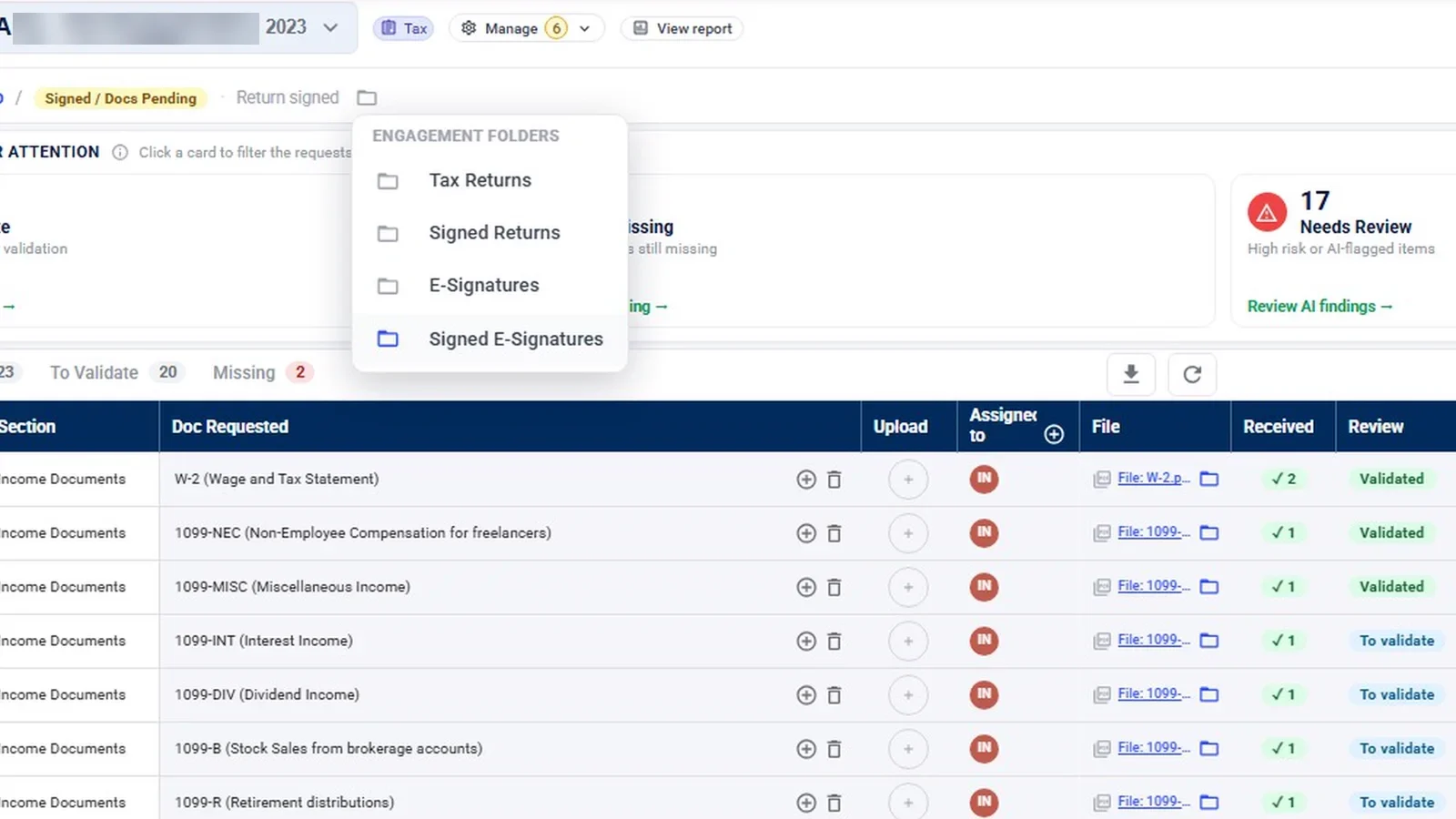
- Folders per engagement and per request. Each engagement has SharePoint folders for Tax Returns, Signed Returns, E-Signatures and Signed E-Signatures, and each request has its own folder, with its path shown on the row.
- One click to the file’s home. Every request row links to its folder (“Open folder in SharePoint”).
- Files dropped in SharePoint show up. A file placed in an engagement period’s SharePoint folder appears in InflowSheet on the next refresh, and signed documents are filed into the engagement’s folders.
- The missing pieces. One request list per engagement and period, review states (Missing, To validate, Questioned, Validated, N/A), uploads that need a look held as pending until a firm user reviews them, and follow-ups drafted for a person to approve.
- Microsoft sign-in. Users sign in with their Microsoft accounts after a one-time admin consent, and the site describes Entra ID sign-in with the firm’s SSO, MFA and Conditional Access policies (see our Security page).
What it does not do: InflowSheet does not replace your SharePoint governance. Retention, sharing policy and eDiscovery are still configured by your administrator. It is not a OneDrive or Outlook integration, and it works with Teams channels the firm creates or links. Engagement data itself (requests, statuses, conversations) is processed and stored in InflowSheet’s Microsoft Azure environment in the US East region, so “everything stays in our tenant” would not be accurate. The Microsoft 365 page and the client portal overview cover the details. Pricing is $10 per user per month (pricing).
 Full walkthrough · 3:11 · access requiredMicrosoft 365, SharePoint and TeamsMicrosoft sign-in, a private Teams channel per engagement, and SharePoint folders for every request and signature.
So, is SharePoint enough?
For storing, sharing and retaining client files, SharePoint is usually more than enough, if someone sets it up with intent. For running engagements it is not, because it has no idea what was requested, what is missing, or who has reviewed what. Firms with strong in-house Microsoft skills can build that layer themselves. Everyone else chooses between a tool that sits on top of their SharePoint and a portal that brings its own storage. The right answer depends less on the software than on where you want the firm’s single copy of each client document to live. If that answer is your SharePoint, start with client document collection or watch the Microsoft 365 walkthrough.
Questions firms ask
Is SharePoint good for accounting firms?
As a document store, yes. It gives a firm site-level permissions, external sharing controls, versioning and Microsoft Purview retention in a platform it already licenses. What it does not give you is a request list: there is no built-in view of which client documents were asked for, received, reviewed or still missing.
Can clients access SharePoint without a Microsoft account?
Yes, in two ways. With the New and existing guests setting, people who do not sign in with a work, school or Microsoft account can verify themselves with a code. With Anyone links nobody signs in at all, but Microsoft notes you cannot track who has access to, or who has opened, items shared that way.
How should we set SharePoint permissions for clients?
Keep internal working files in sites with external sharing turned off, and share client-facing content from separate sites or libraries. Use Specific people links rather than Anyone links, set guest access to expire, and give each client its own folder or site so contacts from different clients never share a folder.
Should a CPA firm use SharePoint as its document management system?
Many firms do, and it works when the folder structure and retention are planned up front. The decision is really about the work on top: if you need request tracking, review states and follow-ups, you either build them yourself or add a CPA tool that uses SharePoint as its document store.
Can Microsoft 365 replace practice or engagement management software?
Not by itself. Microsoft 365 stores, shares and retains files well, but it has no concept of an engagement, a due date per document, a reviewer sign-off or a client's outstanding items. Firms that rely on it alone usually rebuild those pieces in Excel, Lists or Power Automate.
Sources
- Microsoft Learn: Overview of external sharing in SharePoint and OneDrive in Microsoft 365 (retrieved 2026-10-17)
- Microsoft Learn: Manage sharing settings for SharePoint and OneDrive in Microsoft 365 (retrieved 2026-10-17)
- Microsoft Learn: Learn about retention for SharePoint and OneDrive (retrieved 2026-10-17)
- IRS: Protect your clients; protect yourself (tax professional security resources) (retrieved 2026-10-17)
- SmartVault: How We Compare page (retrieved 2026-10-17)
Related
See InflowSheet on your own engagements
Start with the free 90-second tour, or request access and we will walk you through it.