Engagement letter software for CPA firms
Build the letter from your own service library and fees, have the partner approve it by signing first, then send the locked letter to the client for e-signature.
Updated 2026-10-17
Every season, a firm sends out a batch of engagement letters, and every season the same problems come back. A staff member copies last year’s Word file and forgets to update the fee. A letter goes out with the wrong entity name. A client signs a version the partner never saw, or the letter waits on a partner who didn’t know it was in their queue. And in March nobody is quite sure which clients have signed.
InflowSheet is engagement letter software for CPA firms that builds the letter inside the client’s engagement. The letter draws on your services and fees and must have a partner before it can go out. It’s signed in a set order: the partner first, then the client. Each engagement shows where its letter stands, on the home screen and on the E-Signature page.
 Full walkthrough · 3:29 · access requiredEngagement letters and e-signatureLetters built from your service library, signed partner first, then client, with return signing alongside.
Two ways to start: upload a document or generate a letter
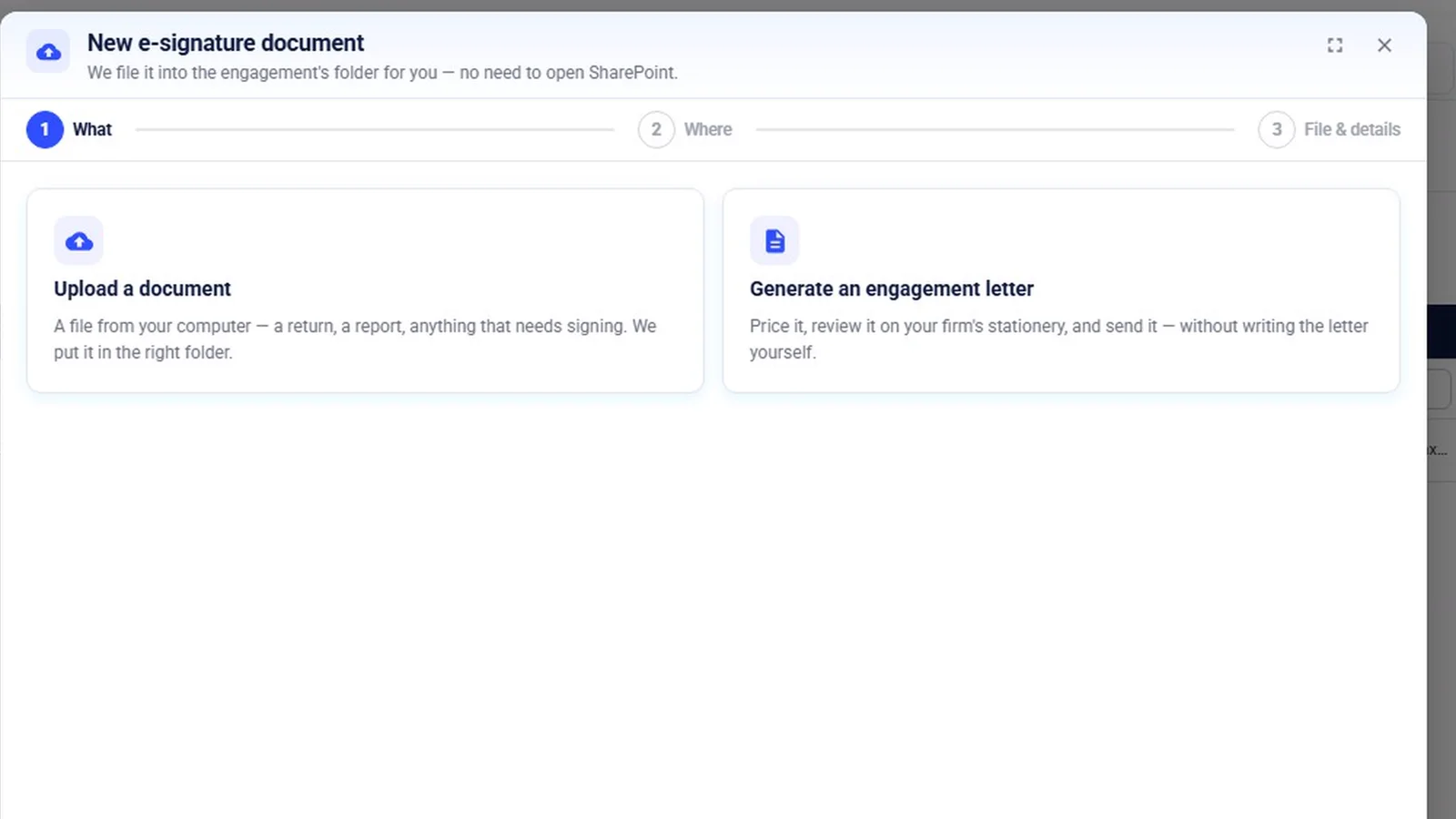
From the E-Signature page, a new document is one of two things. An upload is a return or anything else that needs signing; InflowSheet files it into the engagement’s folder for you, with no need to open SharePoint. A generated engagement letter is the other option, and it opens the letter wizard.
Uploads cover the documents the wizard doesn’t produce, such as a letter drafted outside it, or a return. Whatever the document, it ends up in the same E-Signature list and the same engagement folder as the generated letters, so there’s one place to look for anything awaiting a signature.
The engagement letter wizard
The wizard runs in three steps: Select & price, Review & edit, and Send & track.
Step 1: Select & price
Step 1 sets everything the letter depends on:
- the engagement, the letter type, the period and the year end;
- the services, chosen from your firm’s library;
- the fee;
- the signing partner and the assignee.
Letter types are Engagement, Representation and Management letters. Because services come from the firm’s own library, two managers writing letters for similar clients describe the work the same way.
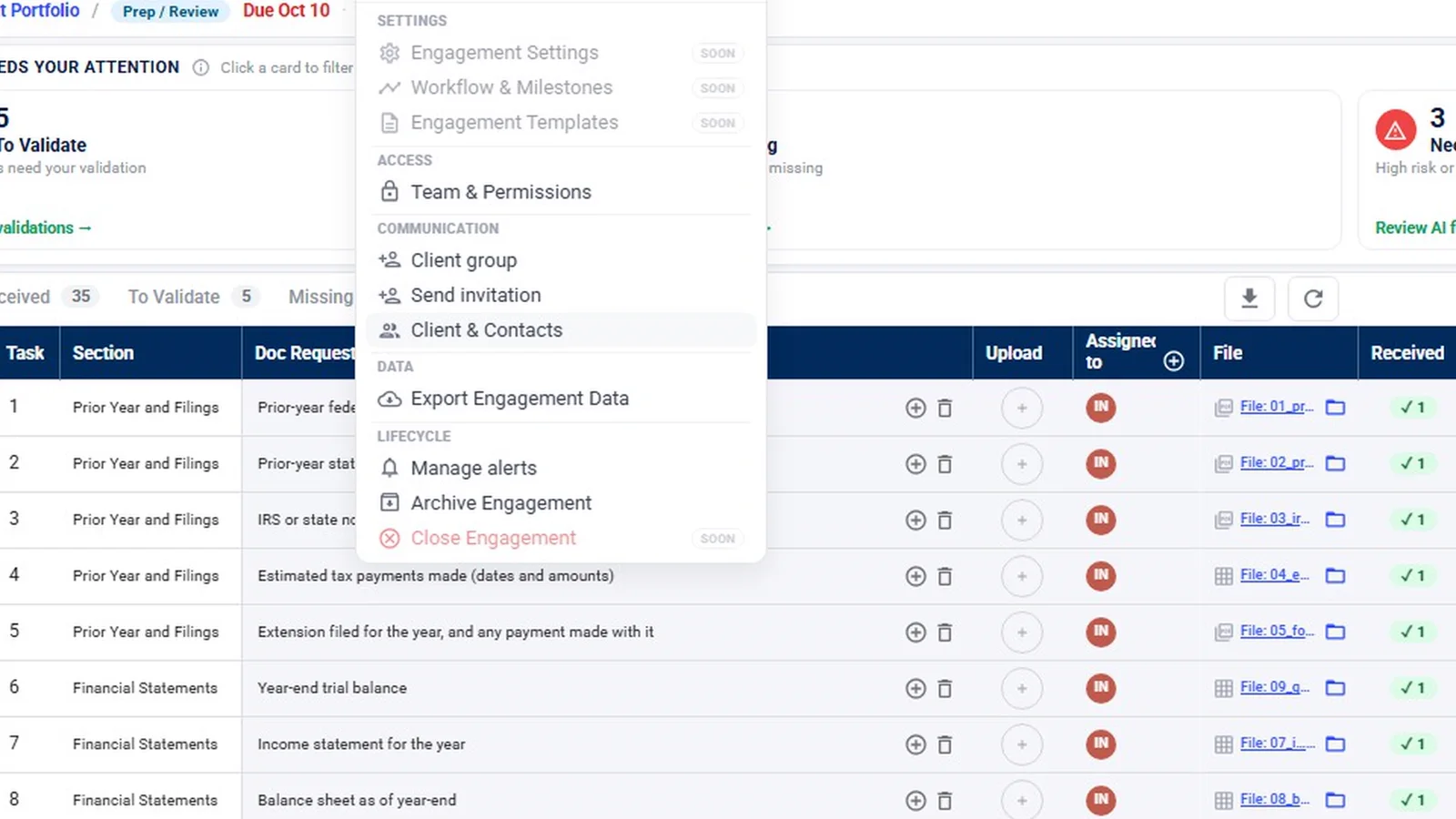
The wizard flags gaps before anything goes out. For example, it warns “No client contact on this engagement” when there’s nobody to send the letter to. You fix that in the engagement’s Manage menu, under Client & Contacts.
Bulk engagement letters
At the start of a season you can do letters in bulk. Select several engagements, and the first row’s partner and owner can be copied to the rest. You still review each letter, but you don’t type the same partner name forty times.
Steps 2 and 3: Review, edit, send
Letters print on the firm’s stationery once letterhead is uploaded. If a letter needs wording the template doesn’t have, a user can download it, edit it in Word and upload the final version. An edited letter still waits to be marked ready (“Looks right, mark ready”) before it moves on. The demo video shows step 1 live; steps 2 and 3 are shown as labelled graphics taken from the app.
Partner rules for engagement letters
Every letter needs a partner. The app checks this on the screen, and a letter without one shows “Needed, this letter has no partner”. Three rules shape who that partner can be:
- Only partners with access to the engagement are offered. A partner can’t sign off on a client they can’t see.
- A firm-wide default signing partner covers letters written by someone who isn’t a partner.
- Letter settings are firm-wide and admin-only.
The partner’s final review lists what to check:
- client names and entity;
- scope of services;
- fees and billing;
- signers and email delivery;
- conflicting special terms.
That list is a reminder on the screen, not a set of tracked checkboxes. The partner’s signature is the approval.
Who counts as a signing partner
Signing authority is separate from access. An administrator flags which staff are Partner Verifiers, the people who sign engagement letters, and this can be any Tax, Audit or Consulting (advisory) user the firm enables. The ERO flag for tax returns is separate, and covered on our Form 8879 e-signature page.
Engagement letter e-signature: partner first, then client
The partner signs first, in DocuSign, to approve the letter. The letter is then locked and goes to the client exactly as reviewed, so the client receives the fees and scope the partner approved.
The client gets a link and confirms their email with a six-digit code. They then sign in DocuSign, embedded in the page. In the client’s own view, “Sign the engagement letter” appears as their next action, and E-Signature sits on their navigation rail.
Signed letters are filed in the engagement’s Signed E-Signatures folder in SharePoint, so the signed copy lives with the rest of the client’s documents. Documents can live in the firm’s own SharePoint (see our Security page and Microsoft 365 page).
Tracking letters across the firm
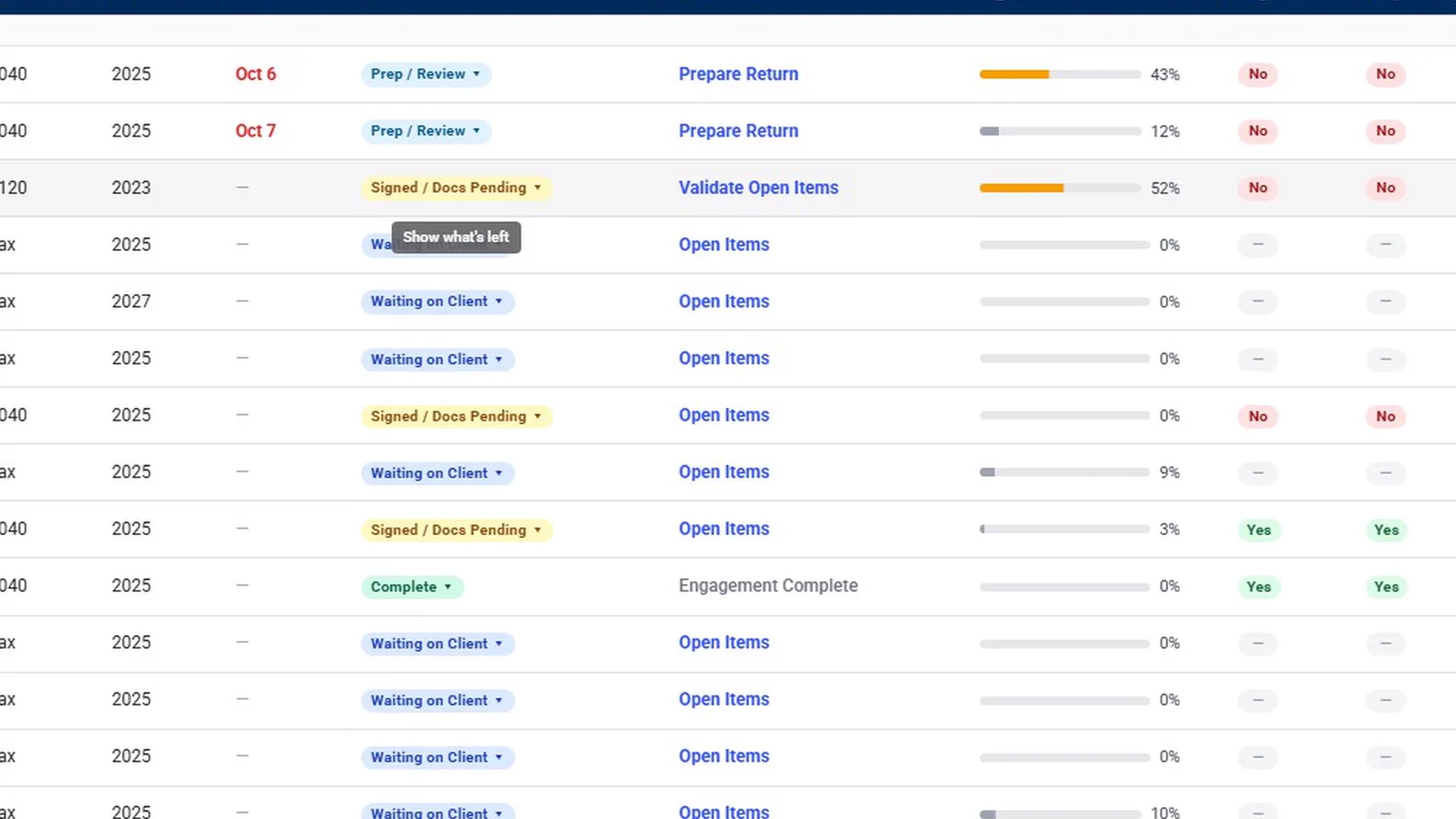
On the E-Signature list, each letter shows as awaiting partner, awaiting client, signed, declined or voided. Counters show what’s awaiting signature, what’s been out more than five days, what was signed this week and what was voided or declined.
On the home screen, the letter shows up as the engagement’s next action: Send Engagement Letter, or Awaiting Letter Signature. Either link opens E-Signature for that engagement. The portfolio’s E-Sign column shows the state for every client in one view.
For letters that have been out too long, a Signature Chase agent drafts a reminder. By default the draft waits for a person to approve it before anything reaches the client.
What the letter tools do not do
- No renewal-date tracking, billing or invoicing from the letter. InflowSheet isn’t a billing system.
- The partner checklist isn’t recorded item by item; it’s guidance on the screen.
- No automatic sending. Letters go out when someone sends them, and reminders are drafted unless the firm has chosen otherwise for routine items.
Letters are one stage of the engagement, which also carries requests, returns and review; see engagement management for the full picture. Engagement letter e-signature is included in $10 per user per month. To see the wizard and the signing order on screen, watch Engagement Letters and E-Signatures.
Questions firms ask
What kinds of letters can InflowSheet generate?
Engagement letters, representation letters and management letters. Each is built from the engagement, the period, the services in your firm's library, the fee and the signing partner.
Can we use our own letterhead and wording?
Letters print on your firm's stationery once letterhead is uploaded. A user can download a letter, edit it in Word and upload the final version, which then waits to be marked ready.
Who signs first, the partner or the client?
The partner signs first, in DocuSign, to approve the letter. The letter is then locked and goes to the client exactly as the partner reviewed it.
Can we send engagement letters to many clients at once?
Yes. Select several engagements in the wizard and copy the first row's partner and owner to the rest, then review before sending.
What happens after the client signs?
The signed letter is filed in the engagement's Signed E-Signatures folder in SharePoint, and it shows as signed on the E-Signature list. InflowSheet does not track renewal dates or bill from the letter.
How much does engagement letter e-signature cost?
It is included in the $10 per user per month price, with DocuSign engagement signature listed among the included features.
Related
See InflowSheet on your own engagements
Start with the free 90-second tour, or request access and we will walk you through it.