Engagement management software for accountants
Start each day from what needs attention, open any engagement in a click, and give each person a workspace shaped by their role and the type of work.
Updated 2026-10-17
Ask a partner in March what needs their attention and the answer usually means opening several tools. There’s a practice management board, a portal, a signature service, an email inbox and a spreadsheet someone keeps updating. Each one knows part of the story. None of them can say which return is waiting on the partner’s signature and which client still owes a 1099.
InflowSheet is engagement management software for accountants built around a different starting point. It opens on the work, not on a menu of tools. Every engagement shows its next step, that step is a link to the screen where it gets done, and each person’s navigation matches their role and the type of engagement in front of them.
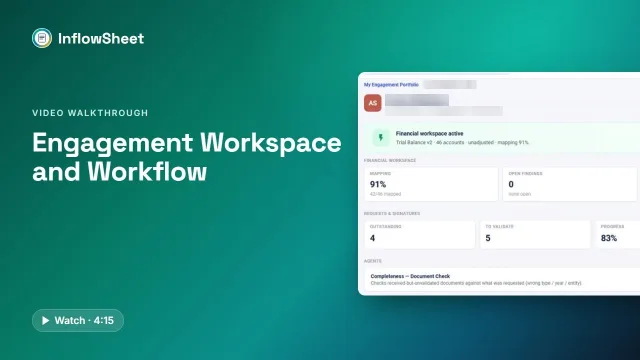 Full walkthrough · 4:16 · access requiredEngagement workspaceStart every day from what is next: KPI cards, the portfolio, Next Action links and the engagement overview.
Start every day from what needs attention
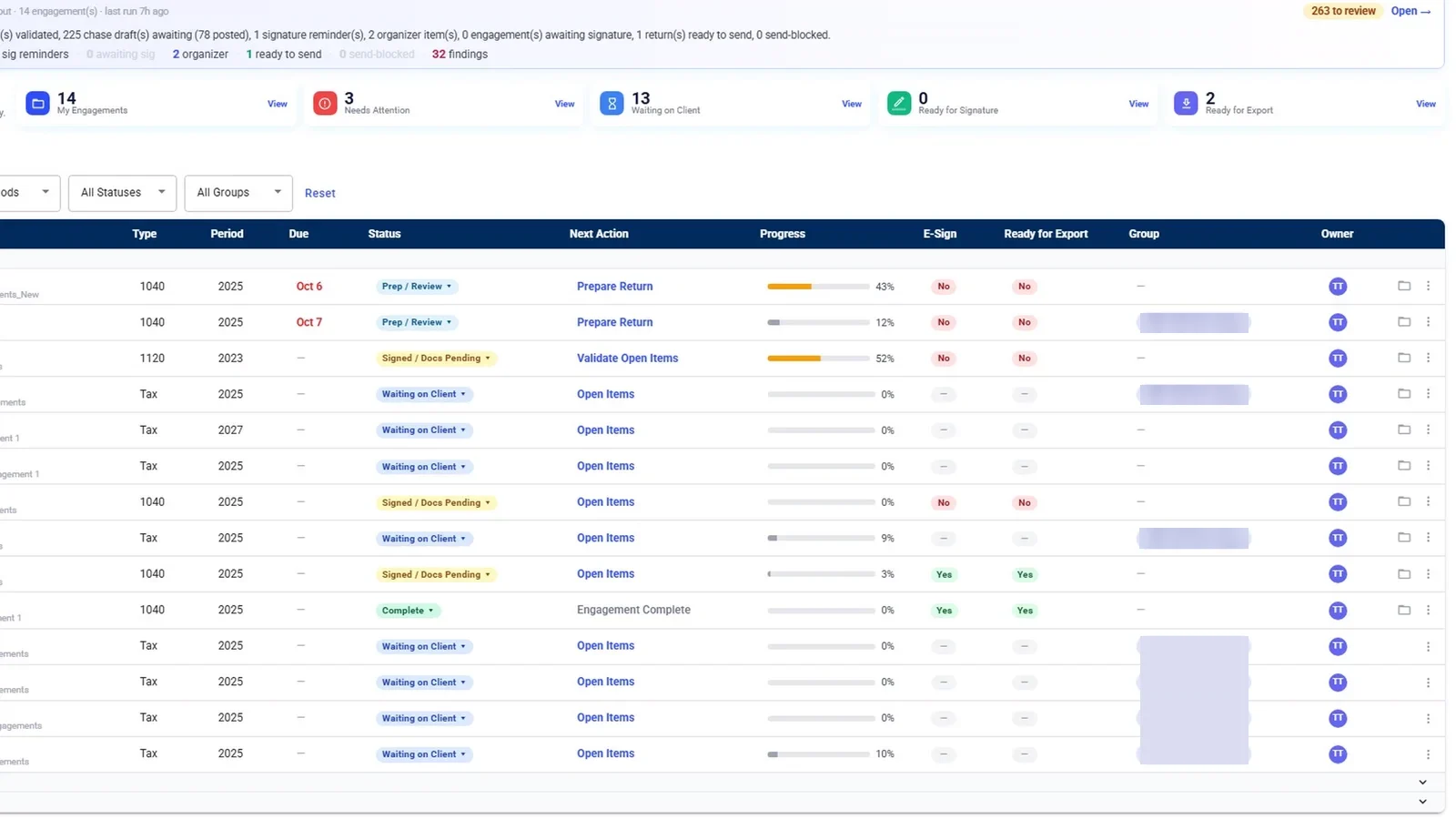
The home screen opens on “Here’s what needs your attention today”. Firm users see five KPI cards:
- My Engagements
- Needs Attention
- Waiting on Client
- Ready for Signature
- Ready for Export
Each card’s “View” link filters the portfolio below it, so “Waiting on Client” becomes a working list rather than a number. A “While you were out” strip summarizes what the agents prepared overnight, with the items waiting for review.
The portfolio: every engagement in one table
Below the cards, the portfolio table lists each engagement with these columns:
- Client, Type and Period
- Due and Status
- Next Action and Progress
- E-Sign and Ready for Export
- Group and Owner
The table filters by type, period, status and group. Older periods and archived engagements sit in their own sections below. A search box finds any engagement or client. The New menu offers New engagement, Manage engagement and Grant request access.
Next Action: the step, and the link to do it
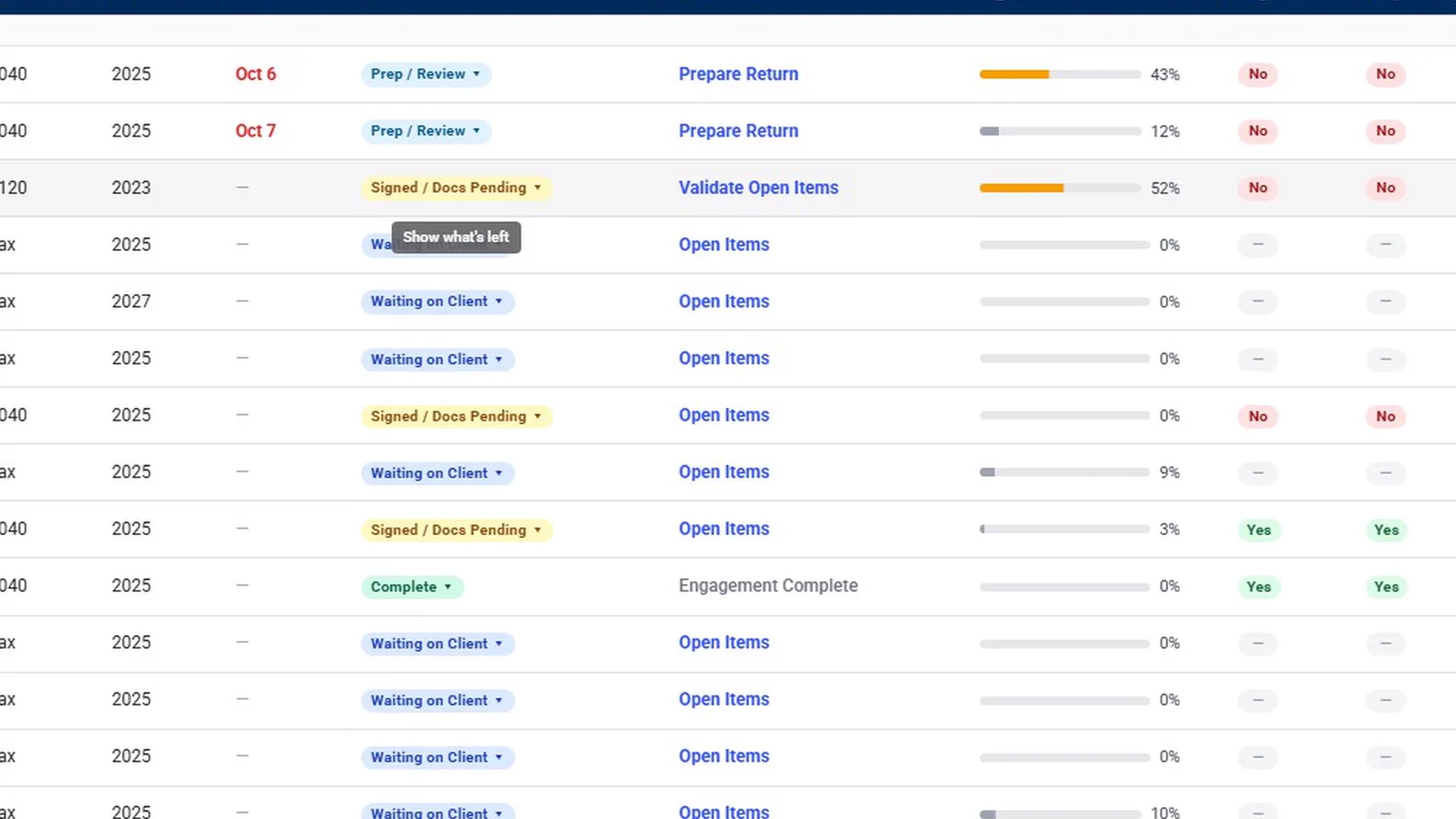
Every engagement shows a Next Action, such as Prepare Return, Validate Open Items or Open Items, and it’s a link. Click “Validate Open Items” and you land on that engagement’s request list, already filtered to the items awaiting validation. Return steps (Start Return, Prepare Return, Send to Sign, ERO to Sign, Awaiting Signatures) open Tax Returns or E-Signature with that engagement in focus. Letter steps open E-Signature.
If a user doesn’t have access to where a step leads, the next action shows as plain text instead of a link. Someone without tax access, for example, sees the return step but can’t open it.
The engagement workspace
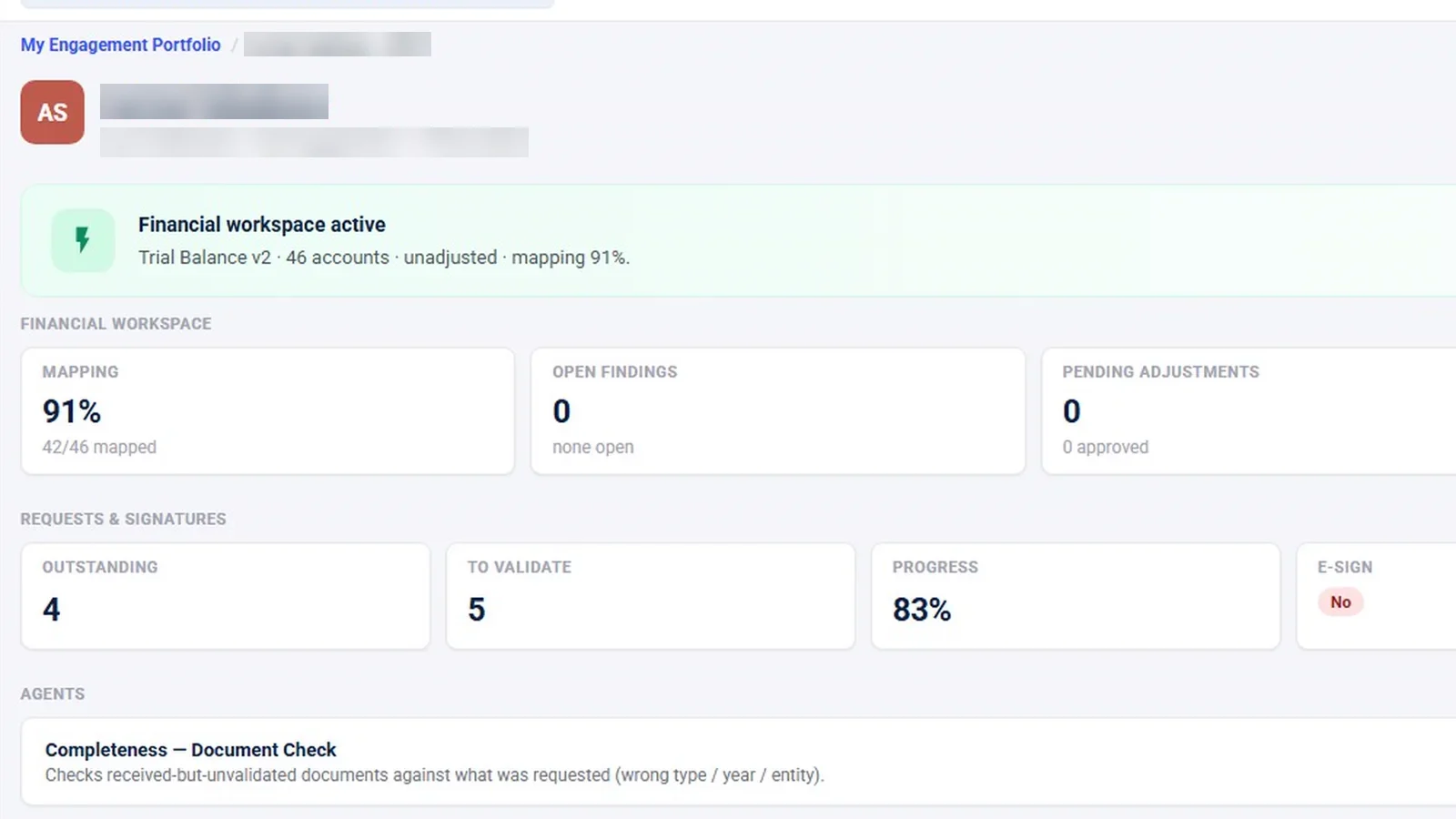
Opening an engagement brings up its overview. It shows the status, period and due date, then the state of the work:
- Financials: a card with the trial balance version, % mapped, open findings, pending adjustments and variances needing commentary.
- Requests and signatures: outstanding requests, items to validate, progress, e-signature status and the next action.
- Checks: the completeness-check and Source Organizer cards.
Workspace cards open the Financial Workspace, the Requests list, Tax Returns, E-Signature and the Review console for manager and partner review.
The crumb bar, the switcher and the Manage menu
Inside an engagement, a crumb bar keeps the status, the due date and the return state (for example “Return in prep”) in view, with a link to the return. The folder icon in the crumb bar opens the engagement’s SharePoint folders. An engagement switcher in the header moves you to another client without going back to the portfolio.
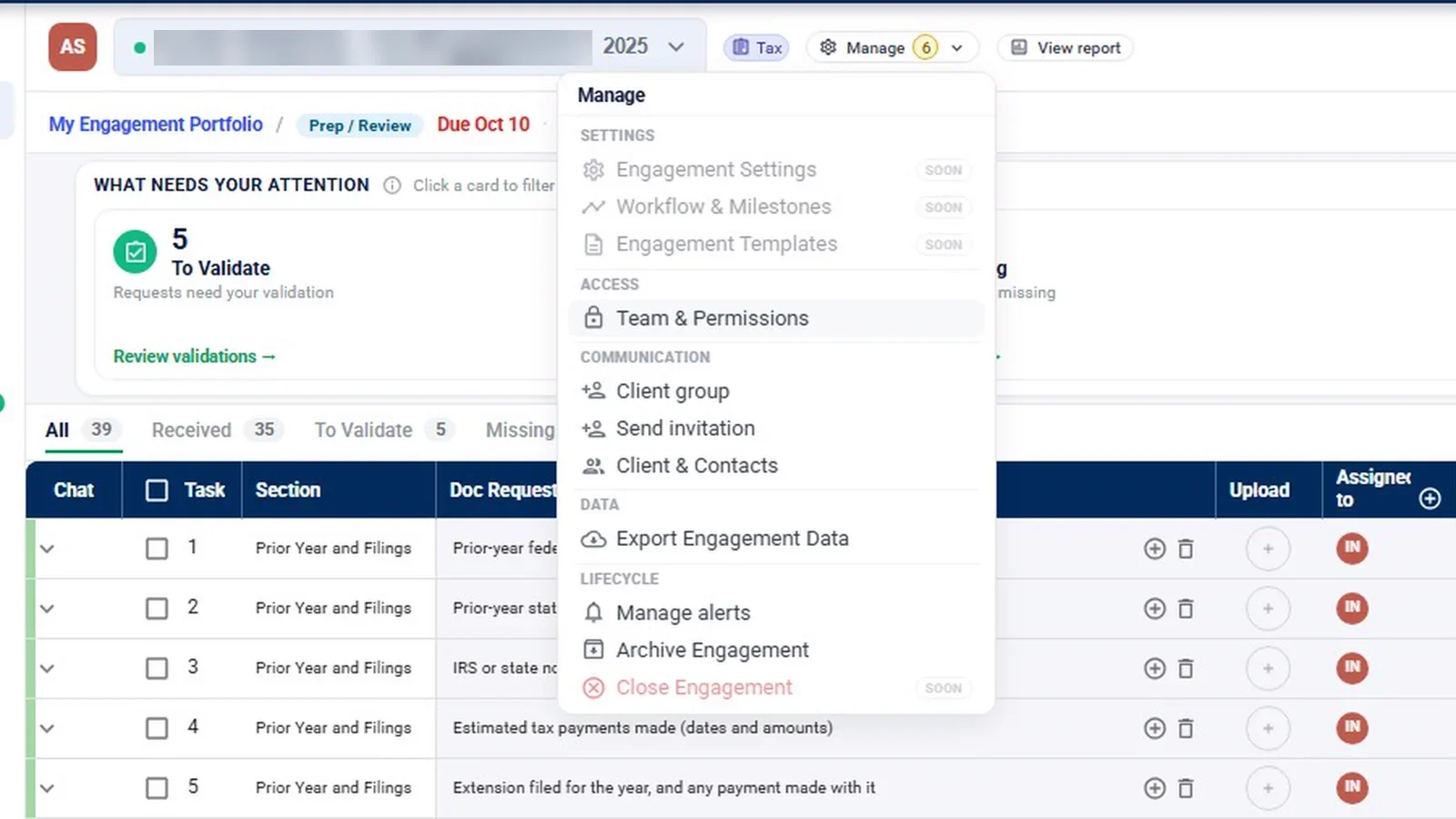
The Manage menu holds Team & Permissions, client group, send invitation, client contacts, alerts, export of the engagement’s data, and archive. Clients come in by invitation, sent from this menu or through Grant request access.
Status that follows the work
Engagement status follows the work. The demo shows Waiting on Client, Prep / Review, Signed / Docs Pending and Complete. The app also has Under Review, Ready for Prep, Ready for Signature, Out for Signature, ERO Review and Awaiting Engagement Letter.
CPA firm workflow automation across tax, audit and consulting
The left rail adapts to the user’s role and the engagement type, which is how one product serves a whole firm without every screen appearing for everyone. An administrator sees the full rail: Home, Requests, Financials, Evidence, Audit Program, Binder, Tax Returns, E-Signature, Agents, K-1s, Network, 1099 Season and Reports.
| Role | What appears on the rail |
|---|---|
| Tax | Tax Returns, K-1s and 1099 Season, plus the financial workspace |
| Audit | Financials, Evidence, Audit Program and Binder; no Tax Returns, K-1s or 1099 Season |
| Consulting (advisory) | Home, Requests, E-Signature, Agents, Network and Reports |
| Client | Home, My Documents, E-Signature and Reports |
On a consulting engagement, Evidence, Audit Program and Binder drop away, and K-1s appears only for tax work. Clients see their own KPI cards (My Engagements, Documents You Still Owe, Awaiting Your Signature) and next actions such as “Upload your documents” and “Sign the engagement letter”. For the client side, see client portal.
Workflow automation in InflowSheet means the next step is worked out and linked for you, and agents prepare work for a person to approve. It doesn’t mean work moves on its own: follow-ups are drafted for a person to approve by default, and a firm decides how much runs unattended. The AI agents page covers those settings.
Access and signing authority
Access is scoped to engagements. An entity access view (User and Entities) shows who can reach which clients, and the Users list shows everyone in the firm with the engagements each can reach. A Super Admin can manage every engagement, user and setting; only staff can be promoted, never clients.
Signing authority is separate from access. An administrator marks which Tax-role users can act as ERO, and which staff are Partner Verifiers who sign engagement letters. See engagement letters for how that plays out.
Reports for the practice
Reports give a practice-wide view: open and overdue requests, how long clients take to answer, and returns waiting too long. Each report opens with a “What this says” summary and a KPI row. Tabs cover Requests, Tax Returns, E-Signature, 1099 Season, K-1s & Network, Financials and Agents.
Built on your Microsoft 365
Users sign in with Microsoft. Each engagement is tied to a private Teams team and channel the firm creates or links with the client, plus a period. Files are stored in that team’s SharePoint, in folders per engagement and per request. More on the Microsoft 365 page.
What it does not do
- No billing, invoicing or time tracking.
- The demo is tax only. It contains only tax engagements, so audit tools were filmed inside a tax engagement.
- The Network page is empty in the demo. It is meant to show entity ownership and where K-1s went, but the demo only shows a “not linked yet” message.
- Some menu items aren’t live yet. Items such as Engagement Settings and Workflow & Milestones are marked as coming soon.
Every user gets the whole platform for $10 per user per month. Watch Engagement Workspace and Workflow for the home-to-engagement path, and Role-Based Navigation, Permissions and Guided Dashboard for the rails by role.
Questions firms ask
What is engagement management software for a CPA firm?
It keeps each client engagement, its documents, signatures, review and status in one place, and shows the team what to do next. In InflowSheet every engagement has a status, a due date and a Next Action linked to the screen where that step happens.
Does InflowSheet handle audit and consulting engagements, or only tax?
The navigation adapts to the engagement type: on a consulting engagement, Evidence, Audit Program and Binder drop away, and K-1s appears only for tax work. The demo workspace contains only tax engagements, so the videos film the audit tools inside a tax engagement.
Can we control which staff see which clients?
Yes. Access is scoped to engagements, and an entity access view shows who can reach which clients. Each engagement's Team & Permissions sits in its Manage menu.
Does it replace our practice management or billing system?
No. InflowSheet does not do billing, invoicing or time tracking. It runs the engagement work itself: letters, requests, returns, review and signatures.
Does it work with Microsoft Teams and SharePoint?
Yes. Each engagement is tied to a private Teams team and channel the firm already has with the client, and its files are stored in that team's SharePoint, in folders per engagement and per request.
What does it cost?
$10 per user per month, one price, with every user getting the whole platform.
Related
See InflowSheet on your own engagements
Start with the free 90-second tour, or request access and we will walk you through it.