Role-based permissions for CPA firms: navigation, client access and signing authority
The right screens for the right people: Tax, Audit, Consulting and client views, access scoped to engagements, and signers set apart from viewers.
The full walkthrough opens in the library after you add your name and work email. The 90-second tour needs no email.
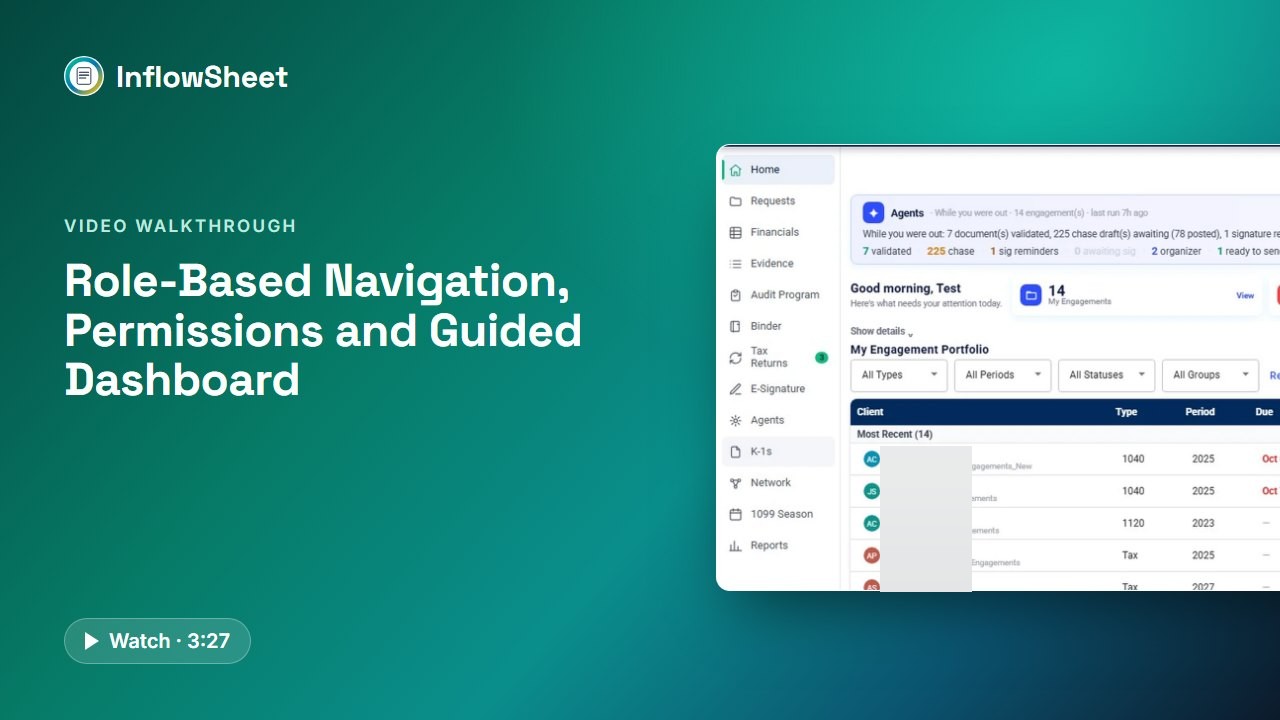 Full walkthrough in the library · 3:28
Who this walkthrough is for
Firm administrators, IT leads and partners who find access either too open or too fiddly: everyone can see every client folder, or someone spends an afternoon setting permissions in three systems. It also answers what a client sees when they log in.
What the walkthrough covers
- Rails by role: the full administrator rail, then what Tax, Audit and Consulting staff get, and the client’s simpler view with My Documents.
- Engagement type: on a consulting engagement, Evidence, the Audit Program and the Binder drop away, and K-1s appear only for tax work.
- Access scope: the entity access view of who can reach which clients, the Users list, client invitations from the Manage menu, and the Super Admin role.
- Signing authority: ERO and Partner Verifier flags set apart from access, with Needs ERO and no-partner gates in the workflow.
- Guided dashboard: next actions that link only where the user has access, and firm versus client KPI cards.
Why it matters
Access that is too open exposes client data; access that is too fiddly slows everyone down. Shaping navigation by role and engagement type, scoping clients to their own engagements, and setting signing authority separately from access is how the walkthrough addresses both problems. Each person sees the screens that match their work, and the people who can sign returns or letters are named deliberately rather than inherited from access.
What the demo data does not show
The demo has a single administrator login, with no Tax, Audit, Consulting or client logins. Only the full rail, the entity access view and the Users list are live footage; the per-role rails, the client view and the admin toggles are graphics labelled as coming from the app’s rail rules. The users and engagements on screen are sample data.
Related features
See what clients get in the client portal and the guide to replacing a CPA client portal. The dashboard these roles shape is covered in the engagement workspace walkthrough, and Microsoft sign-in in the Microsoft 365 video. Security details are on our Security page.
Screens from the walkthrough
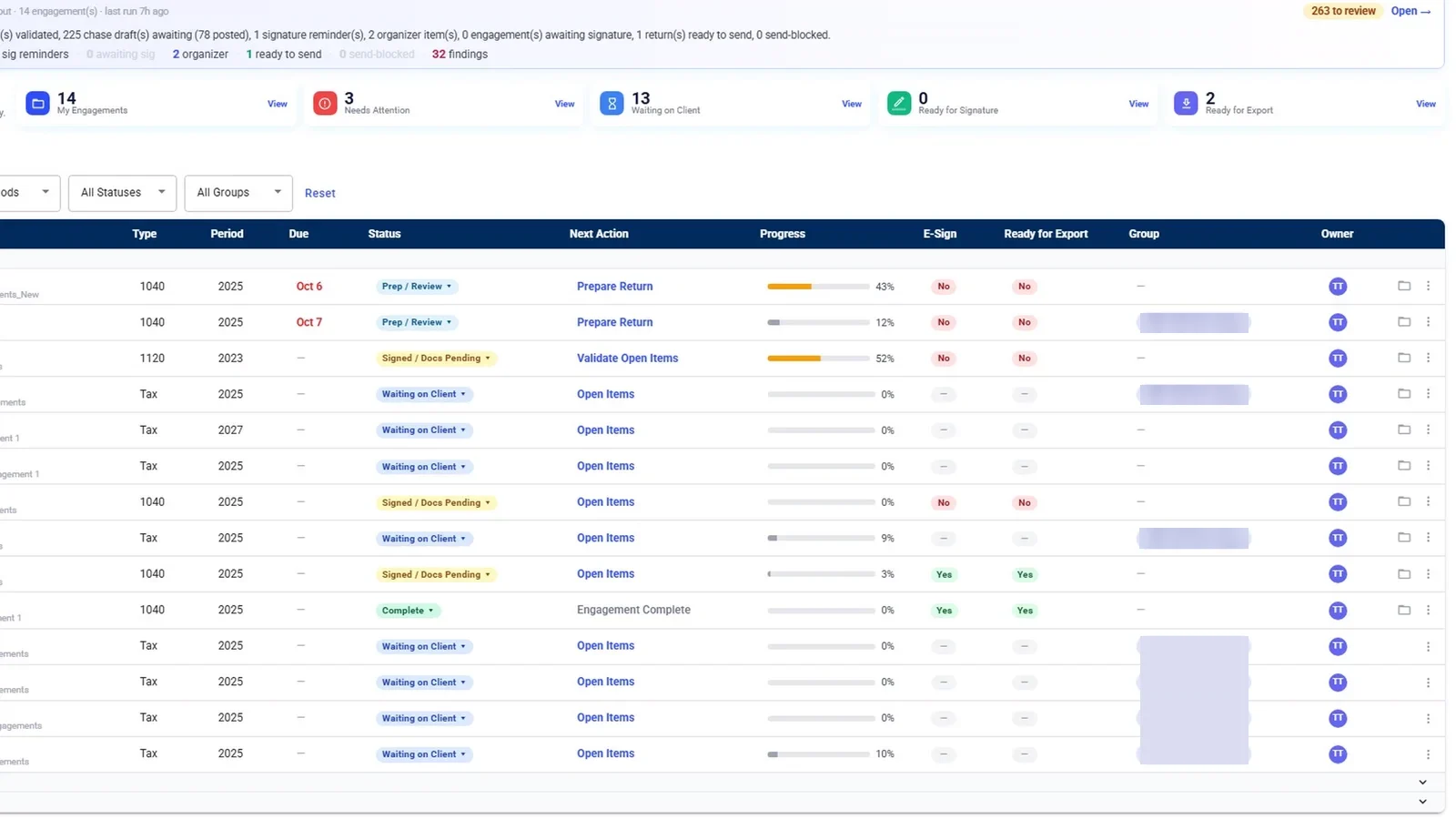
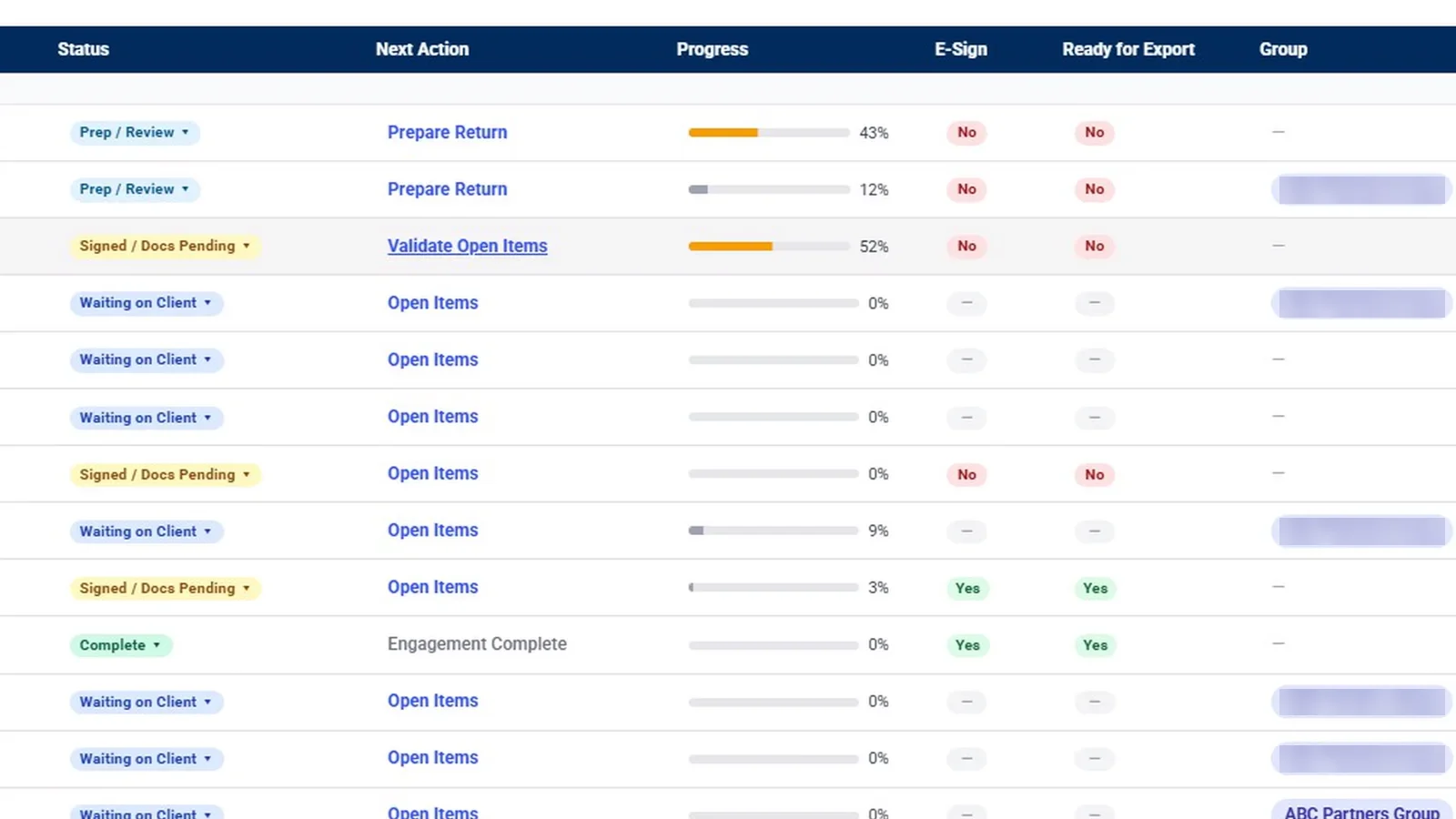
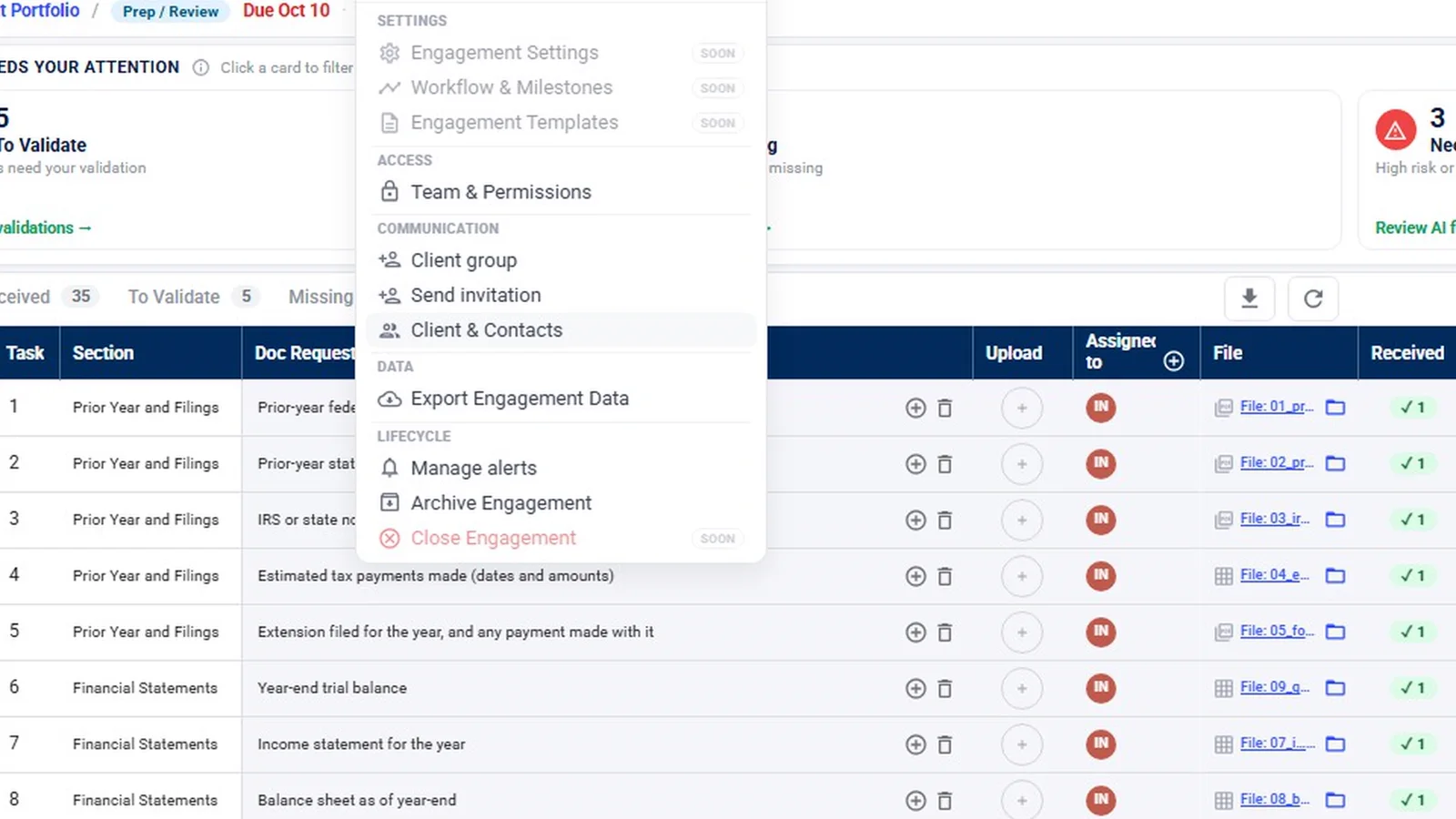
Questions firms ask
What roles does InflowSheet have?
Staff roles are Tax, Audit and Consulting. Admin and Client also exist, and a Super Admin can manage every engagement, user and setting in the firm. Only staff can be promoted to Super Admin, never clients.
What do clients see?
Clients see Home, My Documents, E-Signature and Reports. Their home shows their engagements, the documents they still owe and what is waiting for their signature.
Can anyone who opens a return sign as the ERO?
Signing authority is set separately from access. An administrator marks which Tax-role users can act as ERO, and a return cannot start its signature flow until an ERO is assigned.
Who can sign engagement letters?
An administrator marks which staff are Partner Verifiers who sign engagement letters, and a letter cannot go out without a partner.
Related
Watch the full walkthrough
Start with the free 90-second tour, then open the full library with your name and work email.