Microsoft 365, Teams and SharePoint for CPA firm engagements: walkthrough
InflowSheet works with the Microsoft 365 setup your firm already has, so request uploads, returns and signed letters are filed in the engagement's SharePoint folders.
The full walkthrough opens in the library after you add your name and work email. The 90-second tour needs no email.
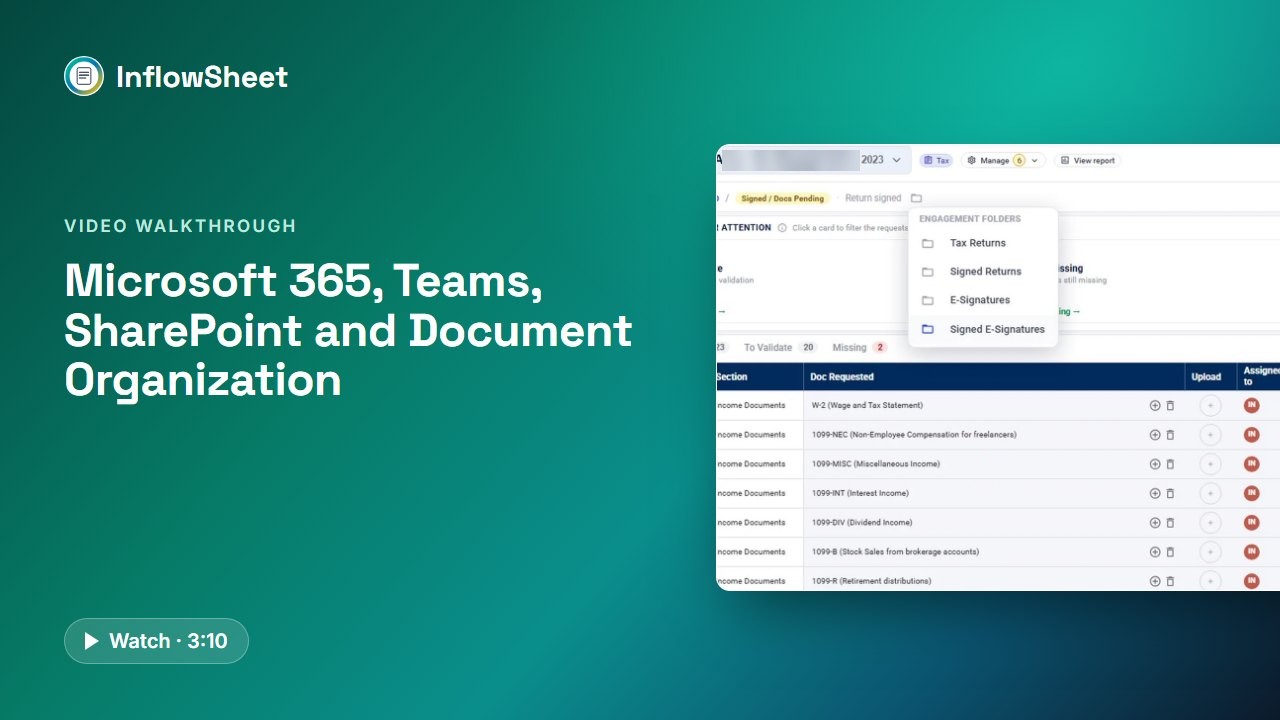 Full walkthrough in the library · 3:11
Who this walkthrough is for
IT leads, operations managers and partners at firms that already run on Microsoft 365, where client documents still end up split between SharePoint, someone’s downloads folder and an email thread. It shows how InflowSheet fits the setup you have rather than adding a separate file system.
What the walkthrough covers
- Sign-in: Microsoft accounts, one-time admin consent during onboarding, and the SSO option in the authentication controls.
- Teams: each engagement tied to a private Teams team and channel the firm shares with the client, plus a period. An admin’s Manage Teams page turns each team on or off and grants or revokes access to its SharePoint site.
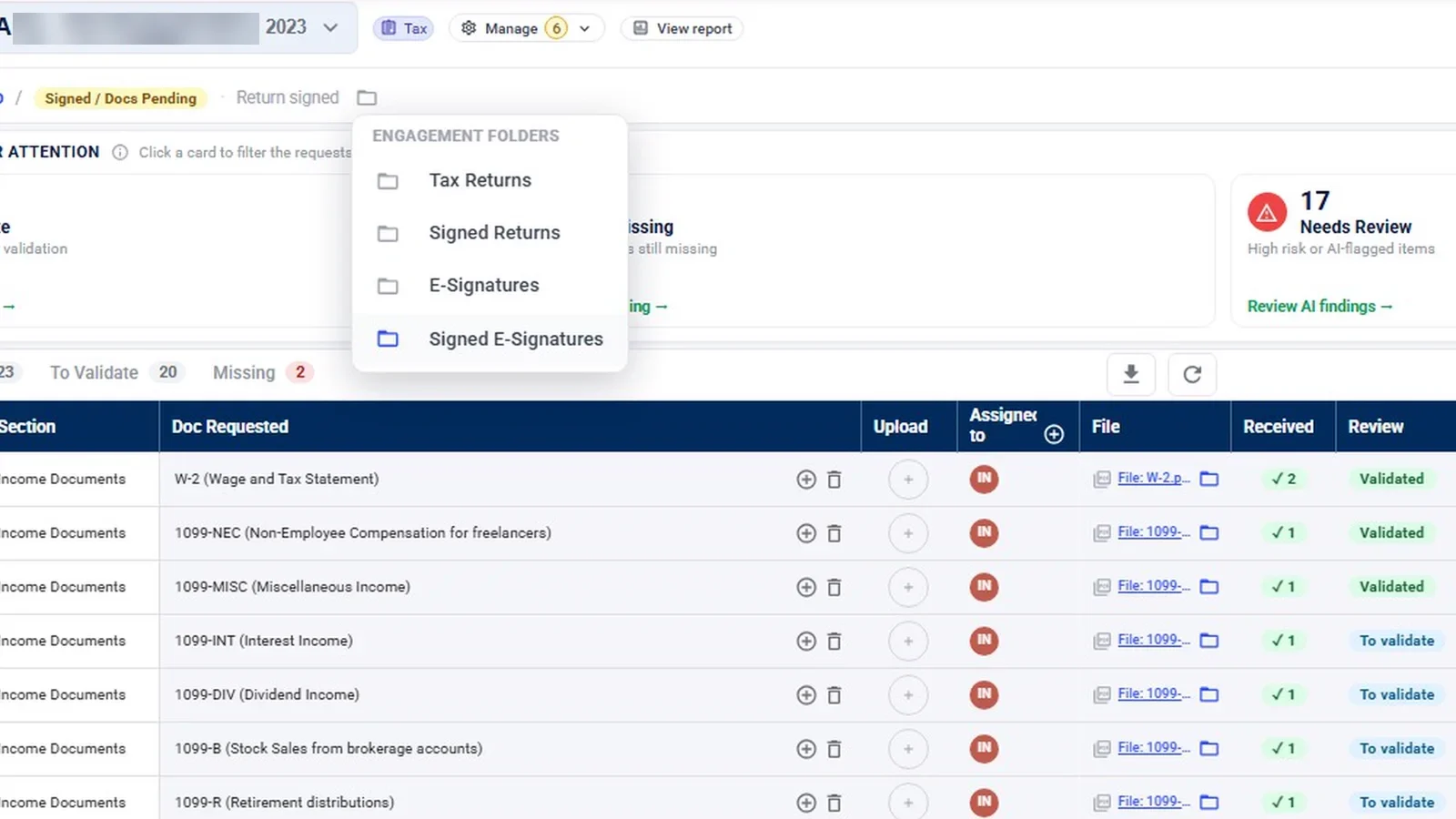
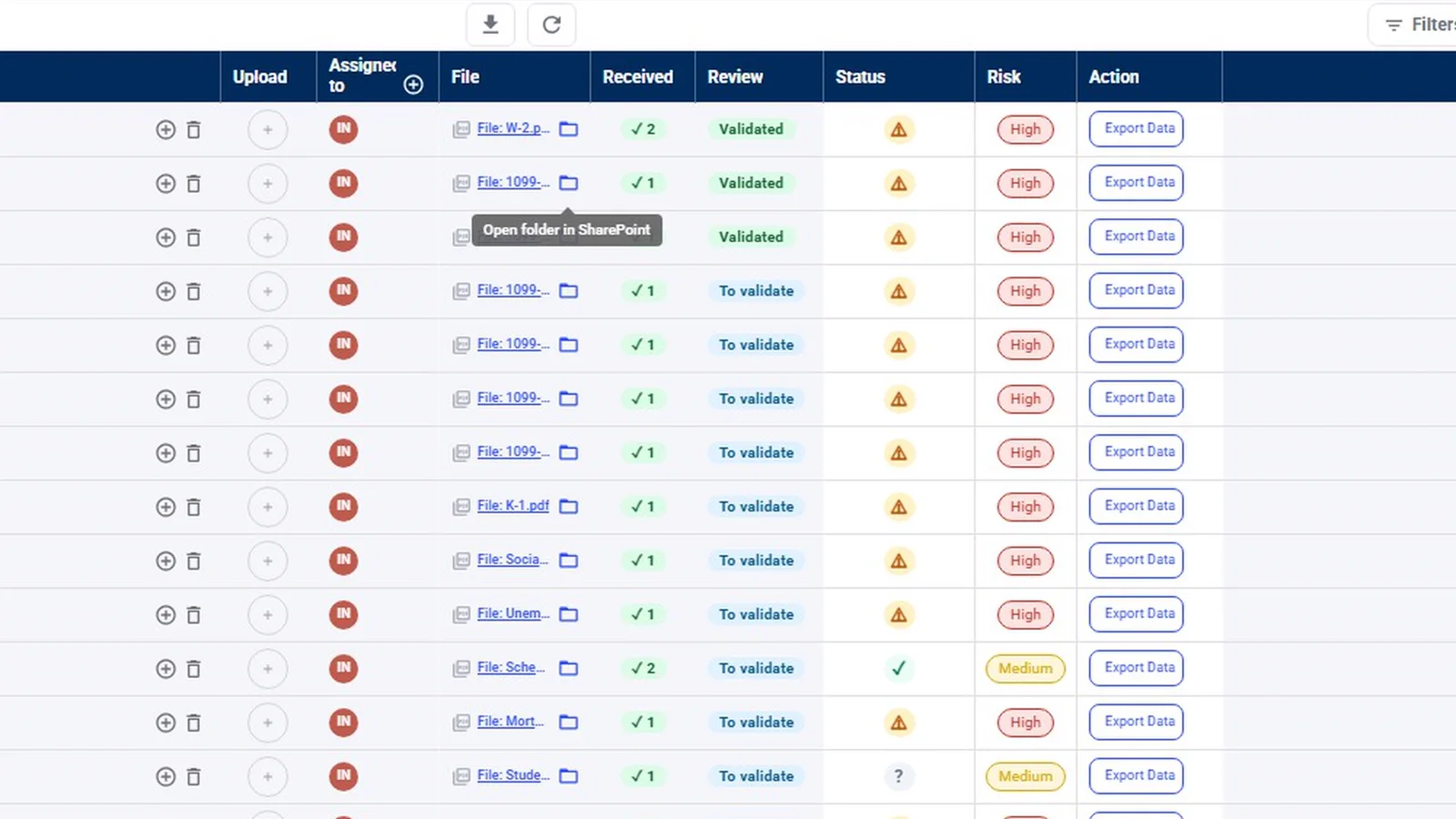
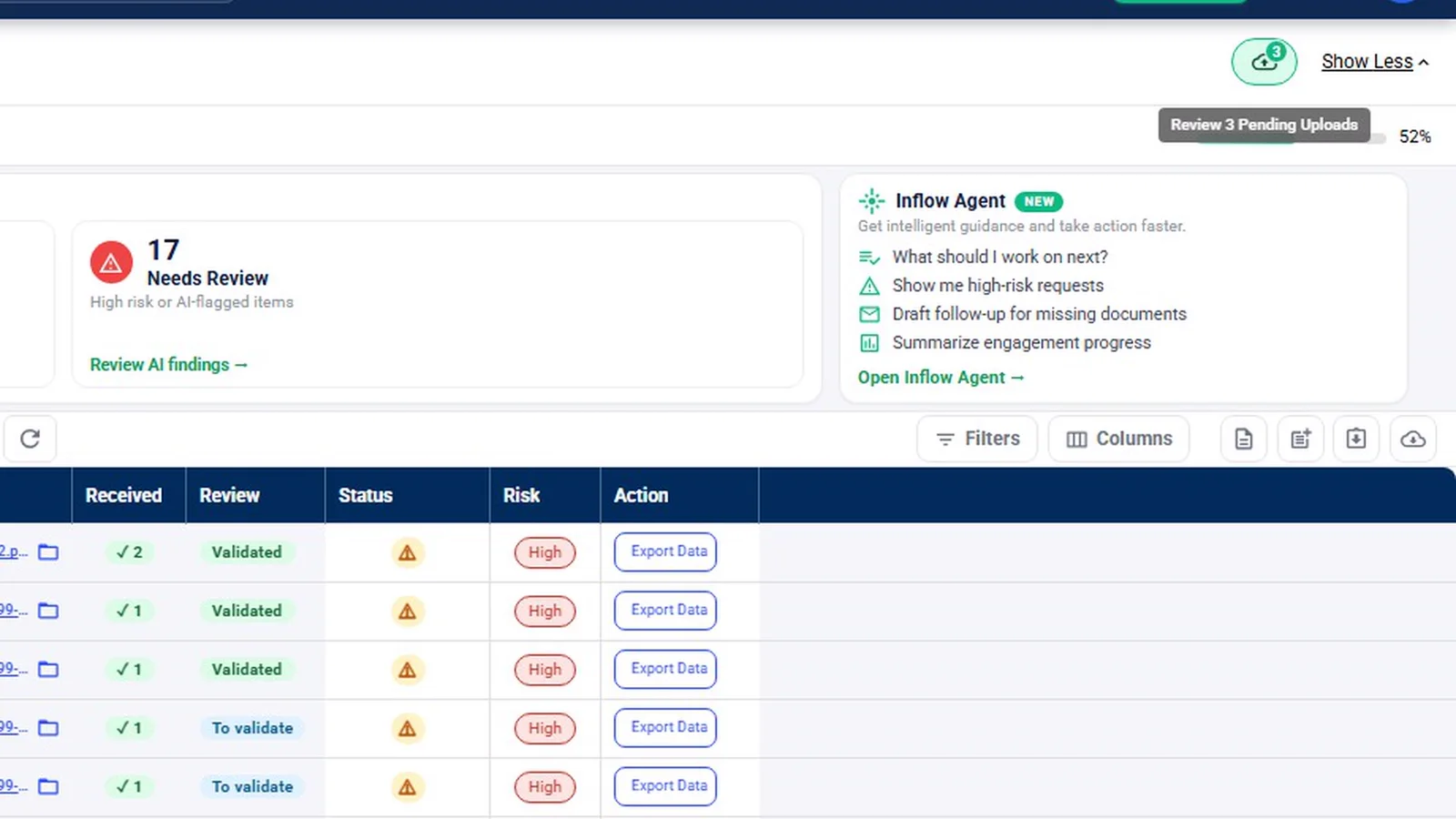
- SharePoint folders: engagement folders for tax returns, signed returns, e-signatures and signed e-signatures; a folder for each request; and an Open folder in SharePoint button on every row.
- Both directions: a file dropped into an engagement period’s folder appears in InflowSheet on the next refresh, documents added for signature are filed for you, and deletions warn first.
- Where data lives: documents can live in your firm’s own SharePoint, while InflowSheet processes and stores engagement data in its own Microsoft Azure environment (see our Security page).
Why it matters
Firms that already pay for Microsoft 365 often end up with client files in several places anyway. Working with the firm’s existing SharePoint and Teams, rather than adding a separate file store, keeps documents where the firm already manages access and retention.
What the demo data does not show
Microsoft sign-in, the consent screen and the Manage Teams page are graphics based on the app’s screens; they were not filmed live. The folder paths shown come from a sample demo tenant. The closing chapter repeats statements from InflowSheet’s published security page. For AI data handling, ask us for the current details and see our Security page.
Related features
Read the Microsoft 365 integration overview and the guide to SharePoint for accounting firms. See how documents reach those folders in client document collection, and how signed documents get filed in the engagement letters and e-signatures walkthrough.
Screens from the walkthrough
Questions firms ask
Does InflowSheet create our Teams and channels?
InflowSheet works with the Teams team and private channel your firm creates or links for each engagement. The team and the engagement channel must both be private.
Where are our documents and data stored?
Documents can live in the firm's own SharePoint. InflowSheet processes and stores engagement data in its Microsoft Azure environment in the US East region (see our Security page).
How do our people sign in?
Users sign in with their Microsoft accounts after a Microsoft 365 Global Admin grants consent once during onboarding. Firms can allow Microsoft single sign-on for internal users, and password login is a separate toggle.
Does InflowSheet integrate with Outlook or OneDrive?
No. The integration covers Microsoft sign-in, Teams teams and channels, and SharePoint. Chat happens in InflowSheet on each request row.
Related
Watch the full walkthrough
Start with the free 90-second tour, then open the full library with your name and work email.