Client document requests and PBC lists: a four-minute walkthrough
How one request list per engagement takes over from the spreadsheet, the inbox and the portal for collecting W-2s, 1099s and PBC items.
The full walkthrough opens in the library after you add your name and work email. The 90-second tour needs no email.
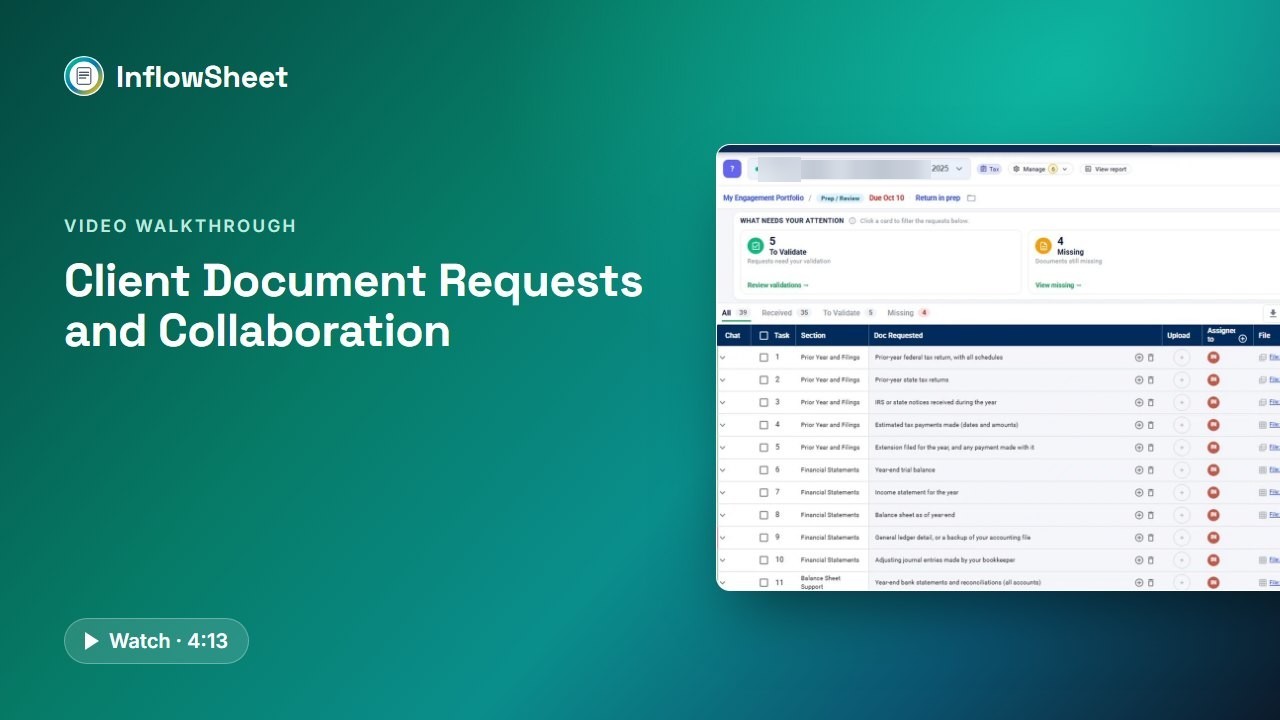 Full walkthrough in the library · 4:13
Who this walkthrough is for
Tax managers, audit seniors and admins who run the document chase every season. If you send a list in January and are still sorting out in March which W-2 arrived, which 1099 is for the wrong year and who last spoke to the client, this is the walkthrough to watch.
What the walkthrough covers
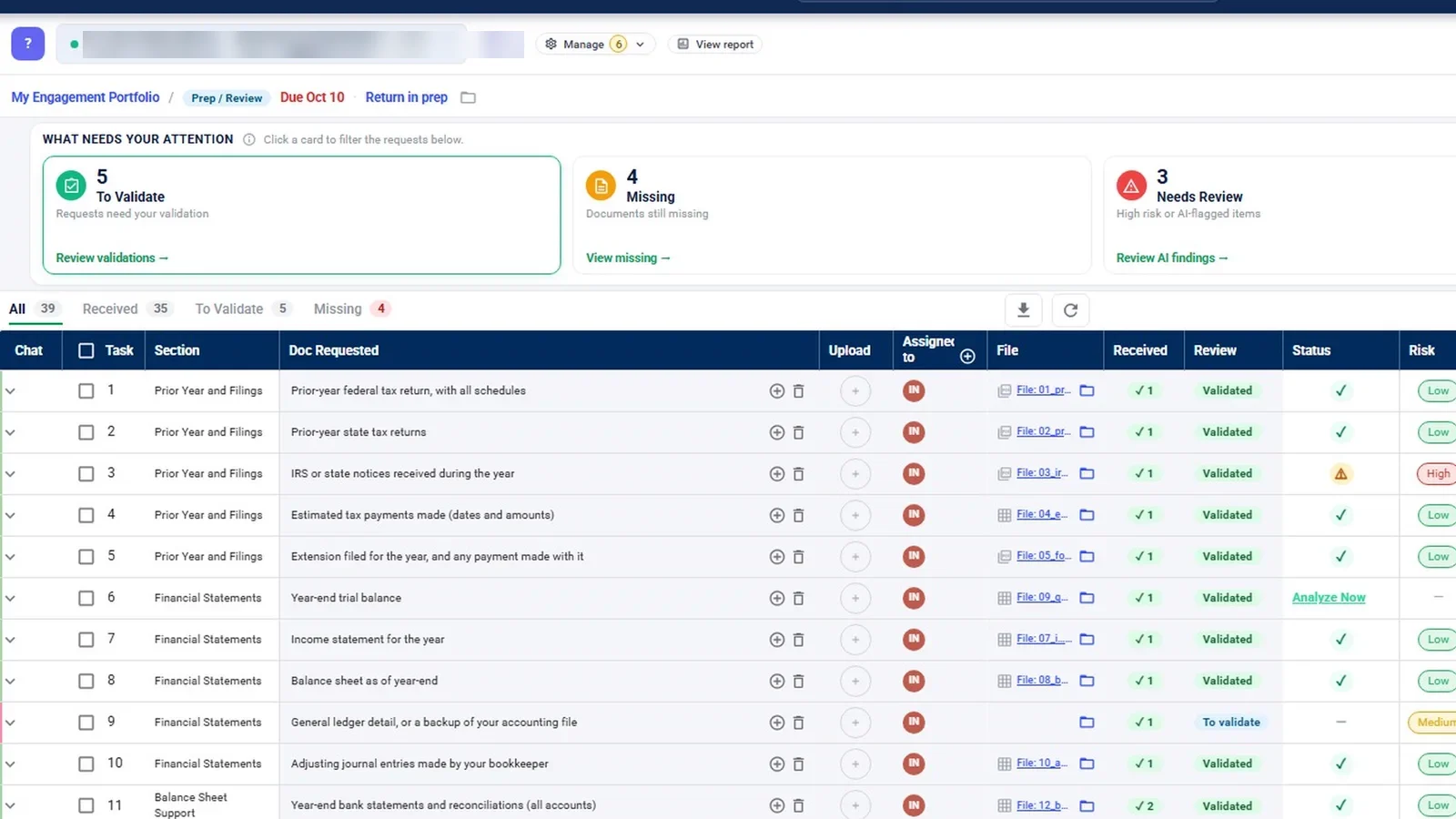
- The request list: rows grouped into sections, with owner, received and review status, plus “What needs your attention” cards that filter the table.
- Building and rolling lists: starting from a prior engagement, a template or an Excel upload, and what carries into a new period.
- Client side: uploads straight onto the request, a chat thread on every row, @mentions with an email notice, and pending uploads awaiting review.
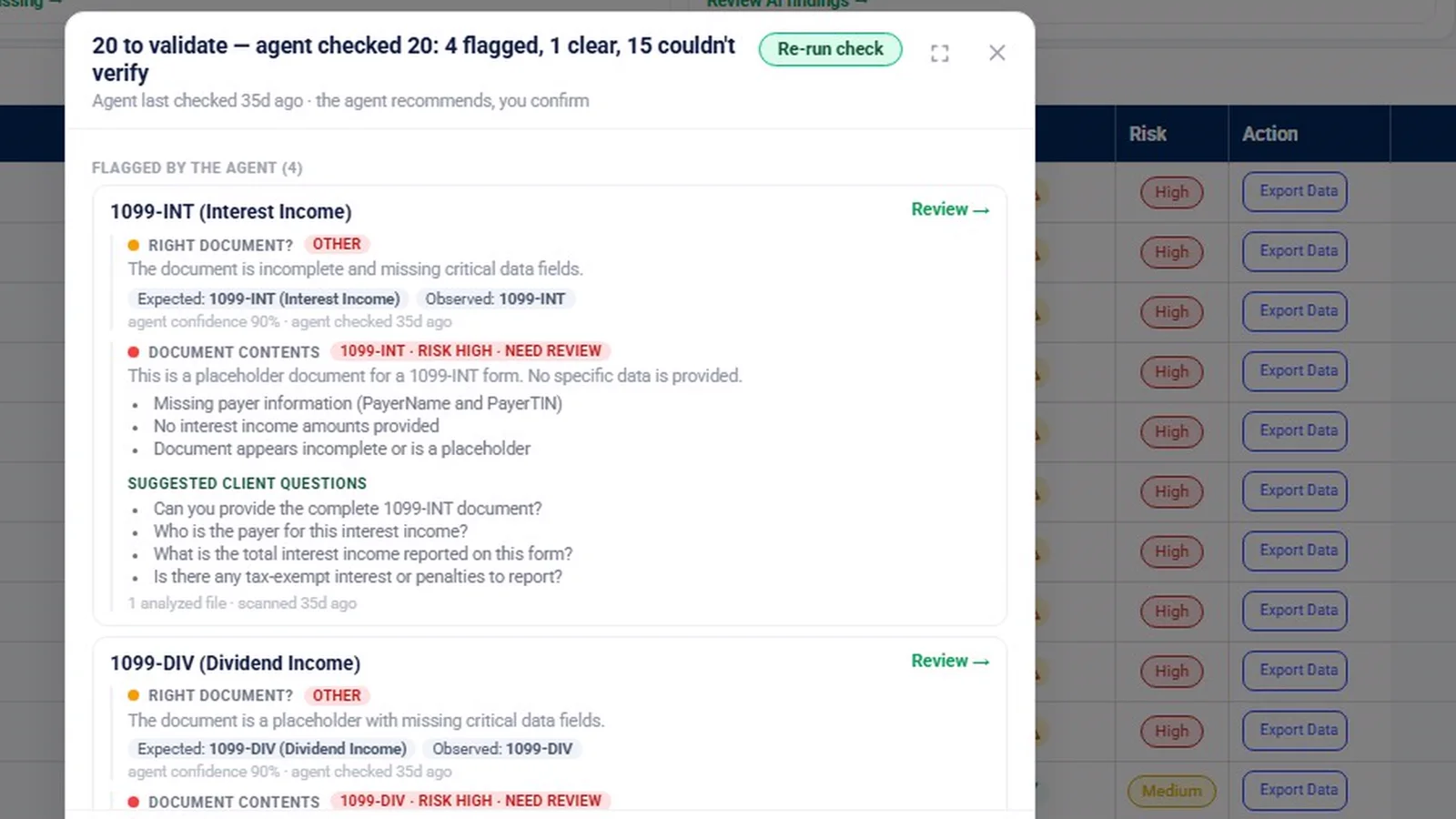
- Completeness check: the agent compares a received document with the request and recommends; a person validates or questions it.
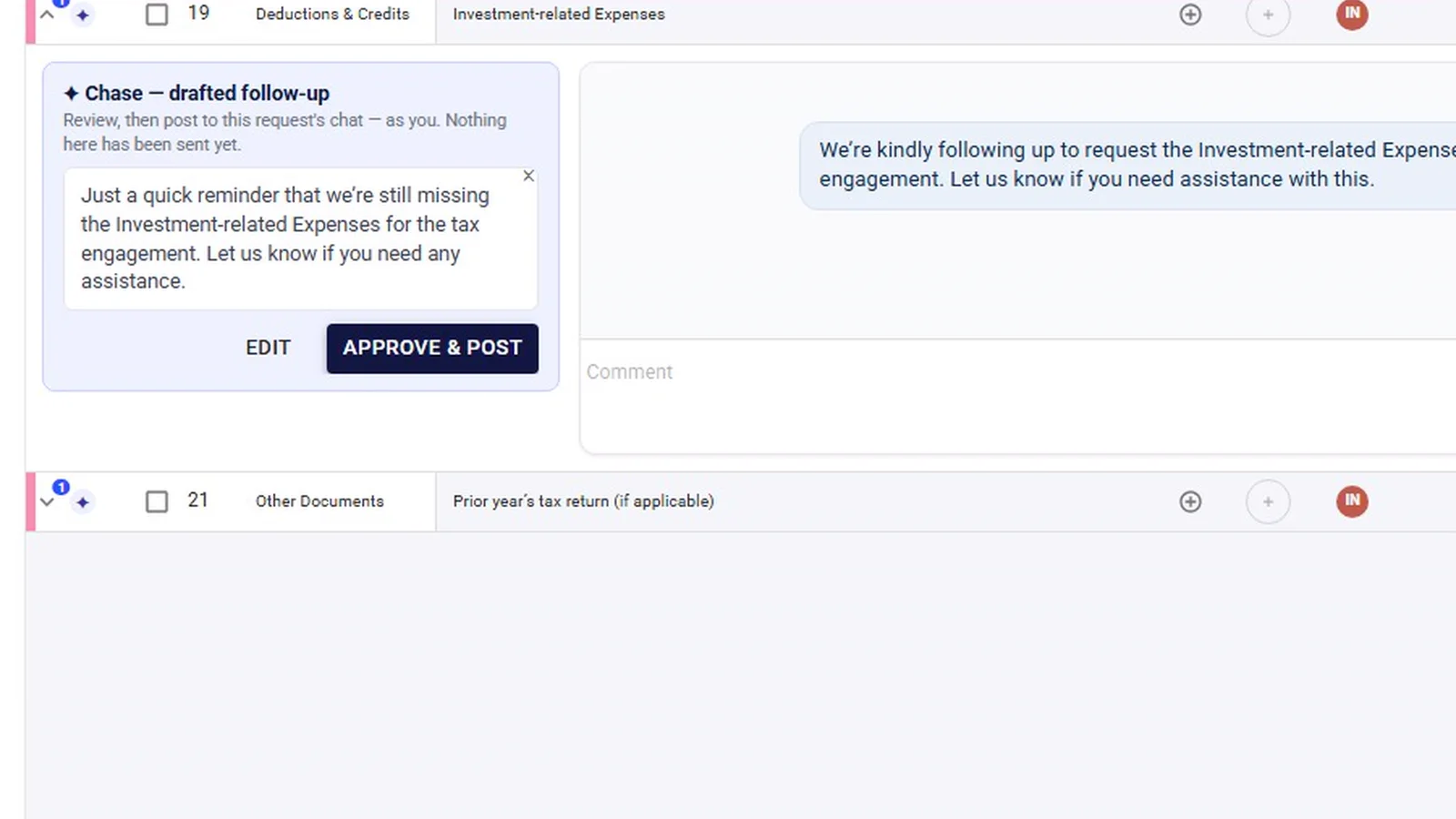
- Follow-ups: a drafted reminder naming what is outstanding, which waits for approval by default.
- Connected work: request counts on the overview and home screen, and a SharePoint folder link on every row.
Why it matters
Document collection is where much of busy season goes: matching uploads to requests, spotting the wrong year or the wrong entity, and writing the same reminder again. Keeping the request, the upload, the review status and the conversation on the same row means anyone on the team can see where an item stands without searching an inbox, and a person still makes every decision about what is accepted and what goes back to the client.
What the demo data does not show
There is no client login in the demo, so the client-side upload and the list builder are shown as graphics based on the app’s own screens. The Inflow Agent panel was only hovered; none of its answers are demonstrated. The completeness finding was run on a placeholder 1099-INT file, and the finding says so. The counts on the Acme Solutions list are sample data, and Acme Solutions is a sample client.
Related features
See how this fits into client document collection and PBC request management, or read the guide on organizing audit PBC requests. The AI agents walkthrough goes deeper on the completeness check and drafted follow-ups.
Screens from the walkthrough
Questions firms ask
Can clients upload documents from their phone?
Yes. Clients upload straight onto the request item, either by dragging in up to 30 files at 10 MB each or by taking a photo with a phone camera.
Do missing-document reminders go out automatically?
By default, no. InflowSheet drafts the follow-up, and nothing goes to the client until someone approves it. A firm can choose to give an agent more room on routine reminders, with a 15-minute hold before anything sends.
Can we reuse last year's request list?
Yes. A list can be started from a previous engagement, a saved template or from scratch, or uploaded from an Excel template. When a client rolls into a new period, owners, account mappings and prior-year balances carry forward and due dates move 12 months ahead, while chats, statuses and files start clean.
Where do uploaded files end up?
Every request row links to that document's folder in the engagement's SharePoint, so documents can live in the firm's own SharePoint (see our Security page). Uploads that need a look wait as pending until a firm user reviews them.
Related
Watch the full walkthrough
Start with the free 90-second tour, then open the full library with your name and work email.