How to organize engagement documentation
Good engagement documentation is not about having more folders. It is about any reviewer, inspector or new staff member being able to find what was received, what was done, who did it and which version was final.
Updated 2026-10-17
Most firms do not organize engagement documentation badly on purpose. They organize it differently by person. One manager files by client and year, another by form type, a third keeps the “real” version on a desktop until the engagement closes. The result is a file that works for the people who built it and fails everyone else: the reviewer, the peer reviewer, the new senior who picks up the client next year, and the partner answering an IRS notice three years later.
This guide sets out a structure that holds up for tax, audit, review and advisory work. The rules are simple. The value comes from applying them the same way on every engagement.
What the standards expect the file to show
Start from what the documentation has to prove, because that decides the structure.
For audits, AU-C 230 sets the bar: documentation should enable “an experienced auditor, having no previous connection with the audit” to understand the procedures performed, the results and evidence, and the significant findings and judgments [1]. For each procedure, the auditor records the items tested, “who performed the audit work and the date such work was completed”, and “who reviewed the audit work performed and the date and extent of such review” [1].
Three more AU-C 230 rules shape how you organize files:
- Assembly deadline. The final audit file is assembled “no later than 60 days following the report release date” [1].
- No deletion after assembly. After the documentation completion date, documentation may not be deleted or discarded before the end of the retention period, which “should not be shorter than five years from the report release date” [1].
- Changes are recorded. Any later modification or addition must document “the specific reasons for making the changes” and “when and by whom they were made and reviewed” [1].
Tax work has its own rules. A paid preparer must keep a completed copy of each return, or a list of taxpayers, TINs, tax years and return types, and make it available to the IRS for three years after the close of the return period [3]. Electronic return originators must keep Forms 8879 “for three years from the return due date or the IRS received date, whichever is later” [4]. And under Circular 230, a practitioner must, at the client’s request, “promptly return any and all records of the client that are necessary for the client to comply with his or her Federal tax obligations” [2].
Those rules point to the same structure: separate what the client gave you from what you produced, record who did what and when, freeze the file at a known point, and keep it for a known period.
A folder structure by client, engagement and period
Use the same three levels everywhere:
- Client. One top-level location per client entity. Related entities (a family’s trusts, an operating company and its holding company) each get their own, linked by a naming convention or a client group, not nested inside each other.
- Engagement. One location per engagement type: 1040, 1065, audit, review, advisory project. An audit and the tax return for the same company are different engagements with different teams and different retention triggers.
- Period. One location per tax year or fiscal year end. Never mix two years in one folder.
Inside each engagement-period, use a short, fixed set of sections. A workable default:
| Section | What goes in it | Who can see it |
|---|---|---|
| 01 Client documents | Everything the client provided: source documents, statements, PBC items | Firm team; client can see what they sent |
| 02 Correspondence | Significant emails and notes of discussions, saved as files | Firm team |
| 03 Workpapers | Trial balance, leads, tie-outs, tax workpapers, calculations | Firm team only |
| 04 Review | Review notes, sign-off records, cleared points | Firm team only |
| 05 Deliverables | Final return, financial statements, reports as issued | Firm team; client gets the issued copy |
| 06 Signatures | Engagement letter, 8879s, representation letter, signed copies | Firm team; client sees their own signed copies |
| 07 Permanent | Items that carry year to year: org documents, depreciation history, prior elections | Firm team |
Numbered prefixes keep the order stable across tools. Resist adding sections per engagement. When a document does not fit, it usually belongs in one of the seven with a better name.
Naming rules that survive staff turnover
File names should say what a document is without opening it. A simple pattern:
[Period] [Client short name] [Document] [Source or version]
For example, 2025 Northfield W-2 Employer A, 2025 Northfield TB v2 client corrected, 2025 Northfield Cash lead FINAL (Northfield is an invented client). Rules that make this work:
- Period first. Sorting by name then sorts by year.
- Use the client’s own document names where they exist (W-2, 1099-B, K-1, bank statement), so a search for the form type finds it.
- No personal names or initials in file names. Who prepared or reviewed a document is recorded in sign-off, not in “JS edits”.
- No sensitive identifiers. Never put full SSNs, EINs or account numbers in file names; they show up in search results, sharing links and email previews.
- Avoid “final final”. One document is marked FINAL, once, after review. Everything else is a version.
Version control without chaos
Version control matters most for three things: the trial balance, workpapers that are reviewed, and anything the client signs.
- Let the system keep versions, not the file name. SharePoint document libraries keep version history, with limits that can be set at organization, site or library level [5]. Under a manual setting, versions beyond the limit are deleted, and deletions caused by the limit bypass the recycle bin [5]. Check what your libraries are set to before you rely on version history as your record.
- Freeze the reviewed version. When a reviewer signs, the signed version is the one that counts. If the document changes afterward, the sign-off needs to be redone.
- Keep superseded drafts out of the final file. AU-C 230 says the audit file need not include “superseded drafts of working papers and financial statements, notes that reflect incomplete or preliminary thinking, previous copies of documents corrected for typographical or other errors, and duplicates” [1]. Version history can hold those; the assembled file should not.
- Treat client re-sends as new versions. A corrected trial balance or a replacement statement is a new version with a note on why, not an overwrite.
Separate client-facing files from internal workpapers
The single most useful organizing decision is a hard line between what the client provides or sees and what only the firm sees.
- Permissions become simple. Client access is granted to one area, not file by file. Microsoft’s own guidance for SharePoint is to store confidential information in a site with external sharing turned off, and to create separate sites for external sharing where needed [7].
- Returning records is easy. When a client asks for their records under Circular 230, the “client documents” area is most of the answer [2]. Records of the client include materials the client provided and materials prepared by the client or a third party and provided to the practitioner [2].
- Review notes stay internal. A review comment on a workpaper is part of the firm’s file, not something the client should stumble across in a shared folder.
Retention and the end of the engagement
Write down a retention schedule and apply it by engagement type, not by individual judgment. A minimal version:
- Audit: at least five years from report release under AU-C 230 [1], or longer where state rules or firm policy require.
- Tax: at least the IRS preparer and ERO periods [3] [4], and in practice longer, because notices and examinations reach back.
- Permanent items: kept while the client relationship lasts.
Then make the system enforce it. In Microsoft 365, retention policies and labels can keep SharePoint content for a set period; when content under a retention policy is modified or deleted, the original is copied to a hidden Preservation Hold library [6]. Retention settings apply to files, not to folders or libraries as organizing structures [6], so pair them with the folder rules above.
Finally, close the engagement on a date. For audits that is the documentation completion date. For tax work, choose an internal close point, such as when the return is accepted and the signed 8879 is filed, and record it.
How InflowSheet organizes engagement documentation
This section describes InflowSheet, the engagement platform we build. It follows the client, engagement and period levels described above, and documents can live in the firm’s own SharePoint. It does not impose the seven numbered sections; those are a convention for your team.
- Per-engagement, per-period structure. Each engagement is tied to a client, a type and a period, and each engagement and period has one request list. Each request has its own SharePoint folder, and the row shows its path with an “Open folder in SharePoint” link.
- Fixed engagement folders. Each engagement has folders for Tax Returns, Signed Returns, E-Signatures and Signed E-Signatures, opened from the folder icon in the crumb bar. Signed documents are filed into the engagement’s SharePoint folders, and documents added for signature are filed into the engagement’s folder without anyone opening SharePoint.
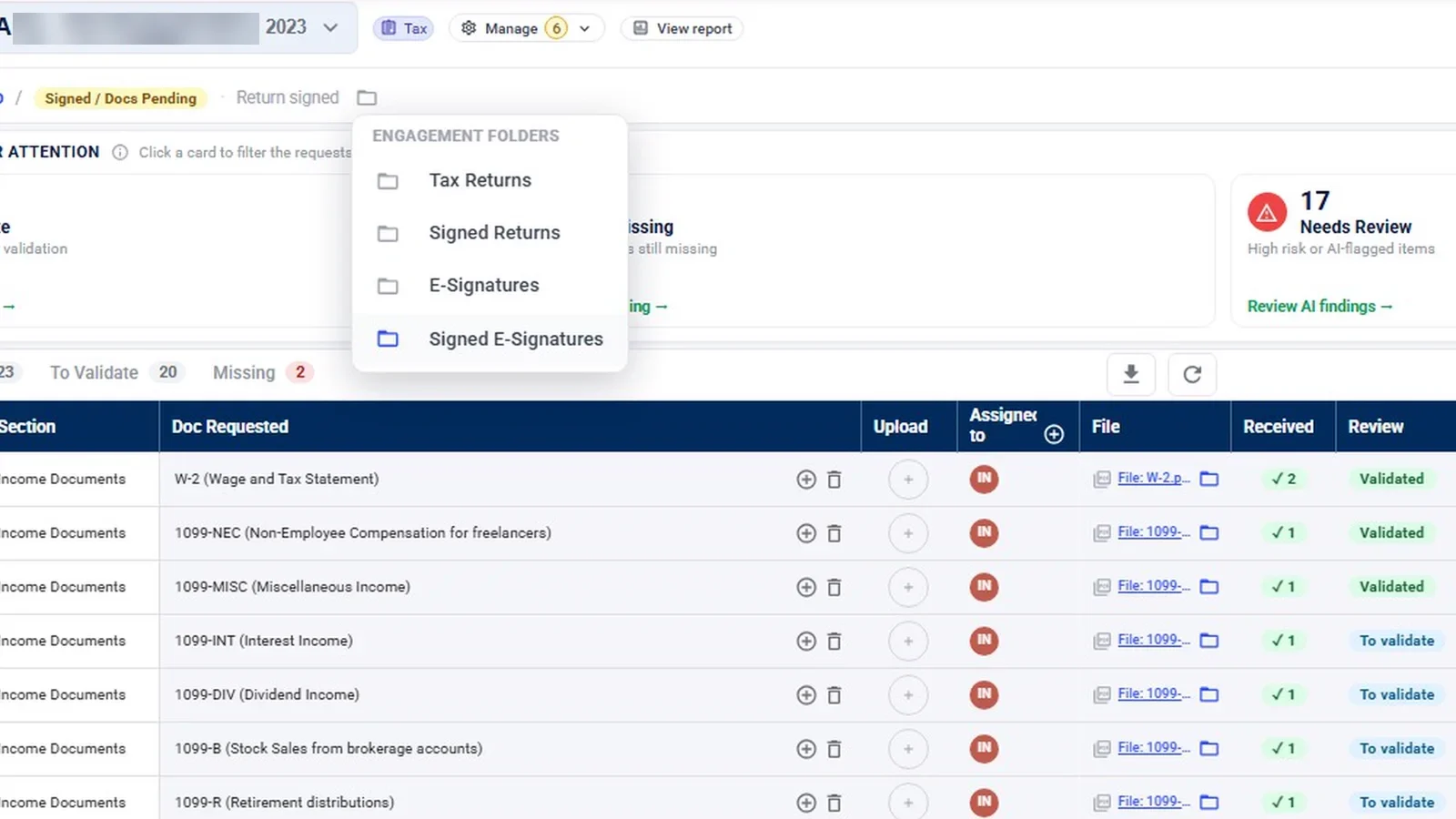
- Client side and firm side. Clients see the request list as “My Documents” and upload onto the request item. Validation (Missing, To validate, Questioned, Validated, N/A) is done by the firm, and the trial balance work sits in the firm-side Financial Workspace. The chat on each request row is where the firm and client talk about that item.
- New period, clean slate. When a client rolls into a new period, responsible people, account mappings and prior-year balances carry forward, while chat, statuses, received files and risk ratings do not.
- Audit binder. For audit work, the Binder assembles the file by index, sections A to G, shows what is not yet filed, and accepts a memo or PDF for paper the product did not produce. In the app, locking the audit file marks the start of assembly (under AU-C 230 the 60-day assembly period runs from the report release date, so lock on or after that date): indexed workpapers are hashed and signed and documents are copied to write-once storage, with addenda still allowed. The lock was not filmed, and the demo binder is empty.
 Full walkthrough · 3:11 · access requiredMicrosoft 365, SharePoint and TeamsMicrosoft sign-in, a private Teams channel per engagement, and SharePoint folders for every request and signature.
Be precise about where data lives. Documents can live in the firm’s own SharePoint, and InflowSheet processes and stores engagement data in its Microsoft Azure environment in the US East region (see our Security page). InflowSheet does not replace your Microsoft 365 retention policies; it files into SharePoint libraries, where those policies can apply if you have scoped them to cover those sites. More on the Microsoft side is on the Microsoft 365 page and in our guide to SharePoint for accounting firms. The audit side is covered on audit evidence management and in the evidence, programs and binder video.
Checklist
- Three levels everywhere: client, engagement, period.
- Seven fixed sections inside each engagement-period.
- File names start with the period and say what the document is.
- Versions live in the system; one FINAL after review.
- Client documents separated from internal workpapers and review notes.
- A written retention schedule by engagement type, enforced by policy.
- A recorded close date for every engagement.
Questions firms ask
How long do CPA firms need to keep audit documentation?
For audits under AICPA standards, AU-C 230 says the retention period should not be shorter than five years from the report release date. State boards, contracts and firm policy can require longer, so set your retention to the longest rule that applies.
When does the audit file have to be assembled?
AU-C 230 requires the final audit file to be assembled no later than 60 days after the report release date. After that documentation completion date, nothing may be deleted before the retention period ends, and any later additions must record why, when and by whom they were made and reviewed.
How long should we keep signed Forms 8879?
IRS Publication 1345 says the ERO must keep Forms 8879 for three years from the return due date or the IRS received date, whichever is later. Many firms keep them with the return for their full retention period.
Should client-provided documents and our workpapers be in the same folder?
Keep them in the same engagement but in separate areas. It makes permissions simpler, and it makes it easier to return client records on request, which Circular 230 requires for records the client needs for federal tax obligations.
Do we need to keep every draft of a workpaper?
AU-C 230 says the audit file need not include superseded drafts, notes reflecting preliminary thinking, or duplicates. Keep the final version, and let version history hold the drafts until your retention rules say otherwise.
Sources
- AICPA & CIMA, AICPA Statements on Auditing Standards, currently effective (AU-C section 230, Audit Documentation) (retrieved 2026-10-17)
- IRS, Treasury Department Circular No. 230 (Rev. 6-2014) (retrieved 2026-10-17)
- IRS, Internal Revenue Manual 20.1.6, Preparer and Promoter Penalties (retrieved 2026-10-17)
- IRS, Publication 1345, Handbook for Authorized IRS e-file Providers of Individual Income Tax Returns (retrieved 2026-10-17)
- Microsoft Learn, Version history limits for document library and OneDrive overview (retrieved 2026-10-17)
- Microsoft Learn, Learn about retention for SharePoint and OneDrive (retrieved 2026-10-17)
- Microsoft Learn, Overview of external sharing in SharePoint and OneDrive in Microsoft 365 (retrieved 2026-10-17)
Related
See InflowSheet on your own engagements
Start with the free 90-second tour, or request access and we will walk you through it.